 Stukent is a Canvas-integrated platform that offers expert video lectures, role-specific student Simternships (simulation internships), lesson plans, videos, instructor notes, case studies, quizzes and more. There is a student fee associated with using Stukent in your Canvas course, please contact the UAB Bookstore for more information.
Please note that Stukent does not appear in every course in Canvas. To have Stukent installed, please submit an Ask Learning Technologies ticket.
How to Access Stukent
Note for users of screen readers: letters in parentheses in the instructions below refer to corresponding areas on example images. If you have any questions about these instructions, contact Learning Technologies for assistance.
Instructors
Before you can access Stukent in Canvas, you must first create a course in Stukent following the instructions below.
- Visit the Stukent website and click “Login” at the top right of your screen.

- Log in with your Stukent-provided email and password. If you do not know your login information, email support@stukent.com or call (855) 788-5368.
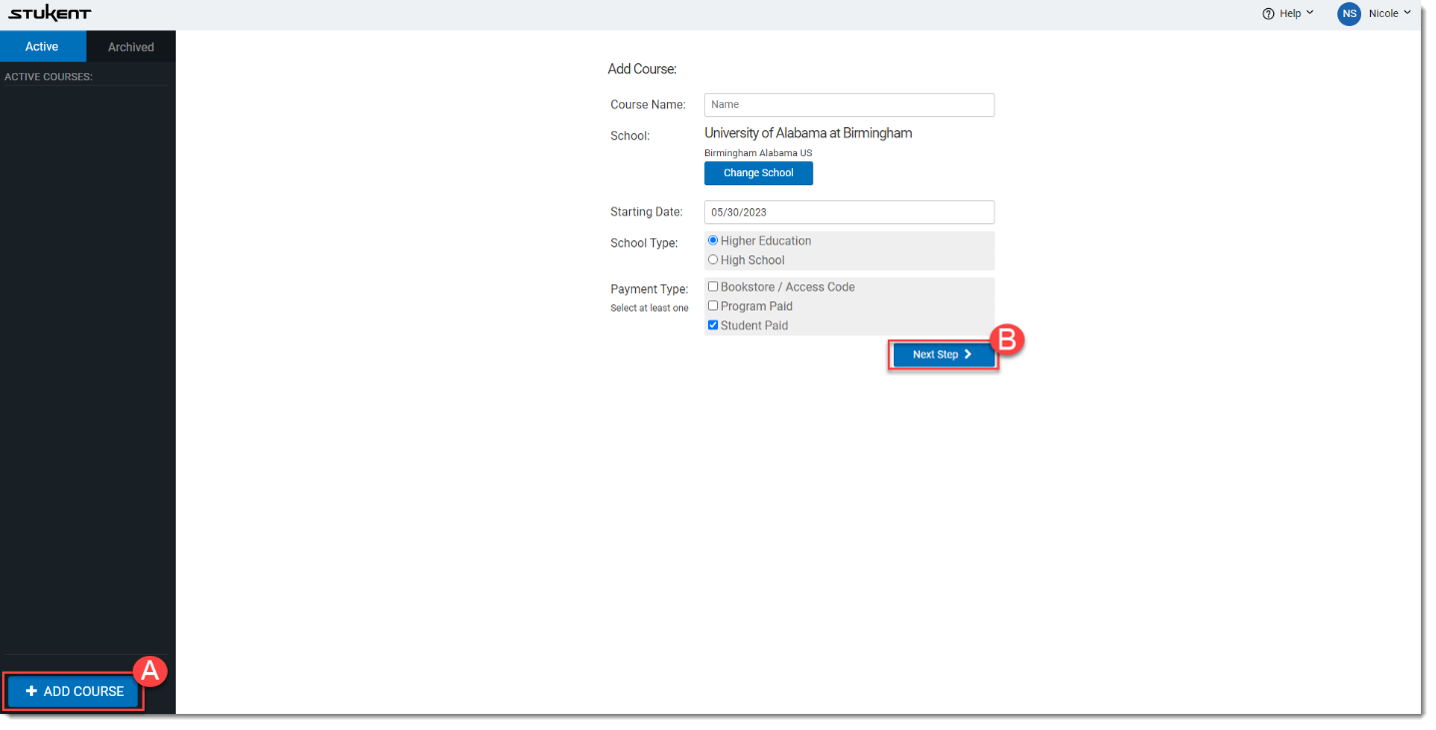
- Once you log in, you will be taken to the instructor portal. Click the “+ Add Course” (A) button in the bottom left corner of your screen. Enter your course details and click “Next Step” (B).
- Once you’ve located the courseware and/or simulations you want to use, select “Add Bundle” (A). After you have added all the desired products for this course, select “Save and Continue” (B).
Note: Selected products cannot be changed after clicking “Save and Continue.” If you decide to switch products after clicking “Save and Continue,” you must add a new course and identify those products in the newly added course.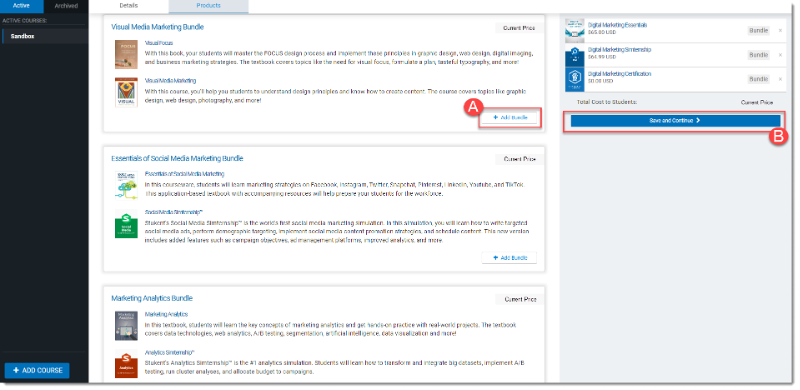
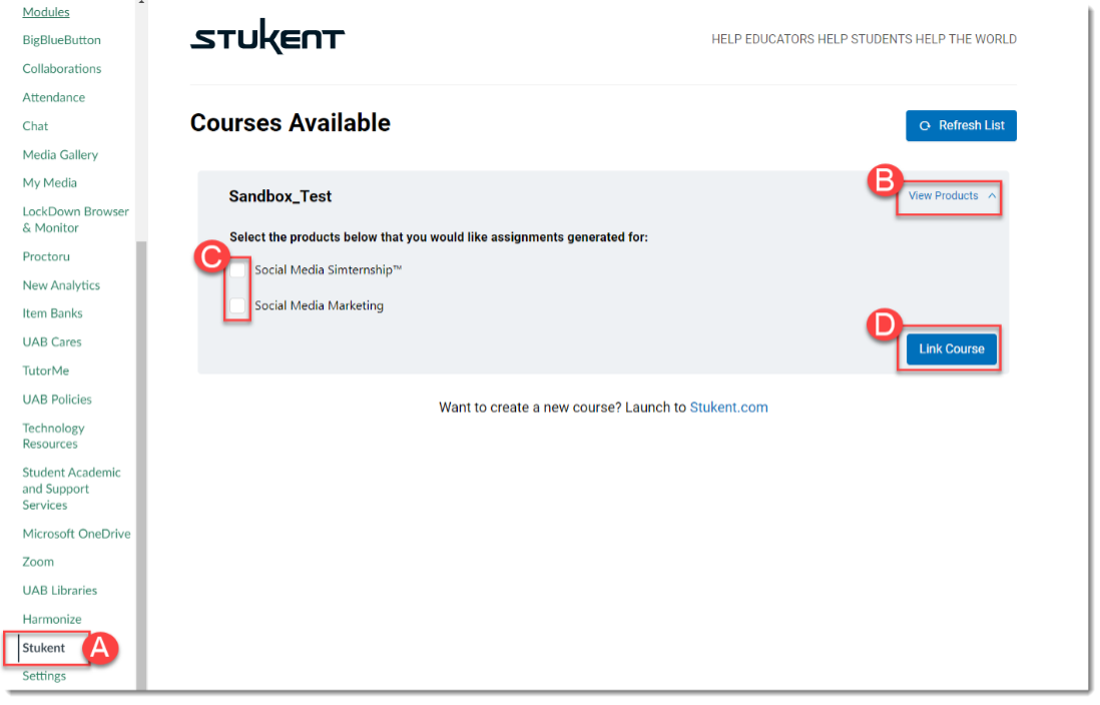
- Once you have completed the previous steps, navigate to your desired Canvas Course. Select Stukent (A) from the left-hand course navigation menu. You should see the Stukent course you created displayed. If you do not see your course, click the "Refresh List" button. Once you have located the course you would like to link, click the "View Products" (B) link to review any products that you would like to generate assignments for during the linking/associating process. Select the products you would like assignments generated for (C). Assignments and Canvas Gradebook columns will only be generated for the selected products. Once you have selected all products for assignment generation click the "Link Course" (D) button to complete the linking process.
Students
There are two ways to launch Stukent within a course as a student.
Option 1:
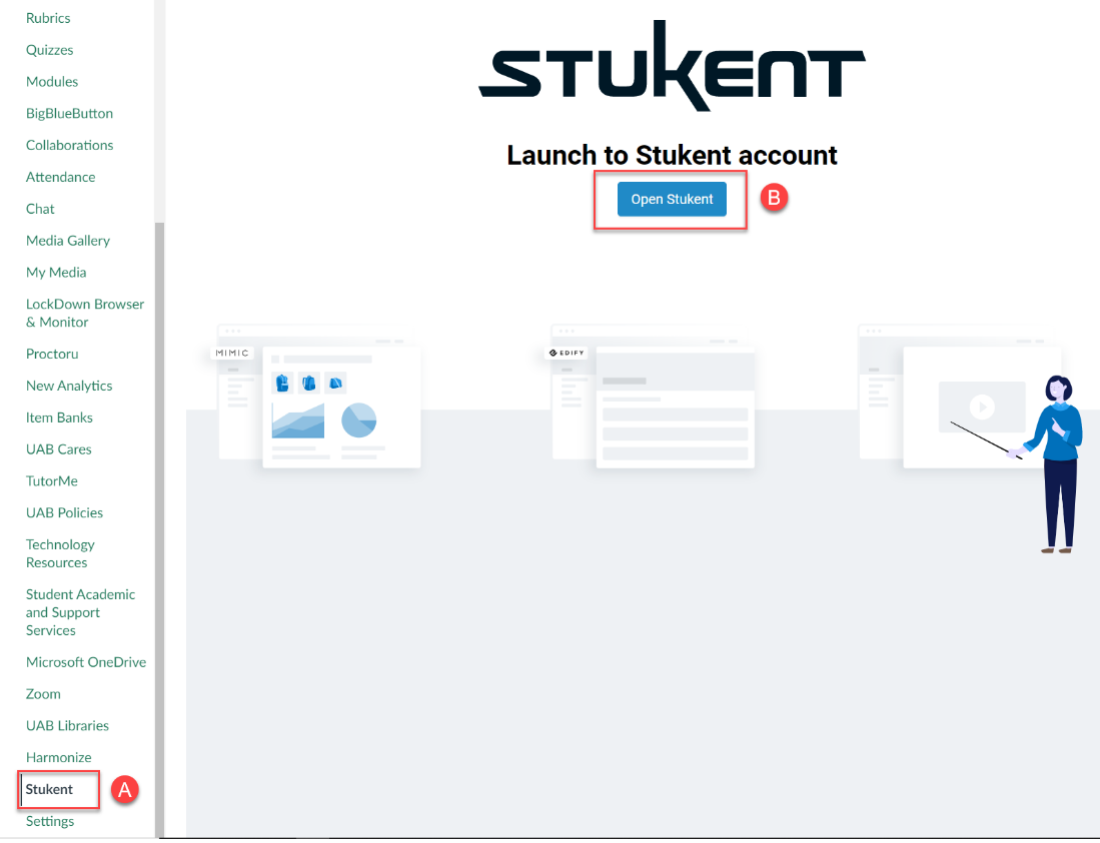
- First, select Stukent (A) from the left-hand course navigation menu. You should see the Stukent launch screen displayed. Click the “Open Stukent” (B) button.
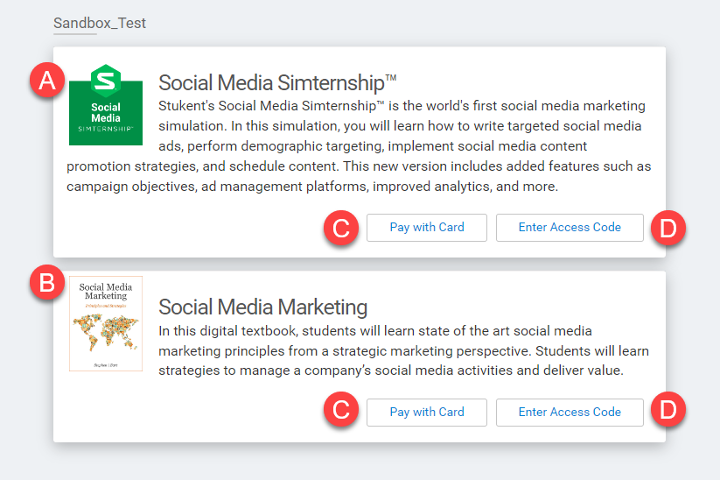
- If you have not purchased the Stukent access code for your course, you will see a screen like the one below displaying the course materials (A) and (B), as well as buttons to either “Pay with Card” (C) or “Enter Access Code” (D). If you purchased Stukent materials through the UAB Bookstore, an access code was provided with purchase, and you should select this option and enter the code. If you did not purchase Stukent materials through the bookstore, select the “Pay with Card” (C) button to purchase directly from Stukent.
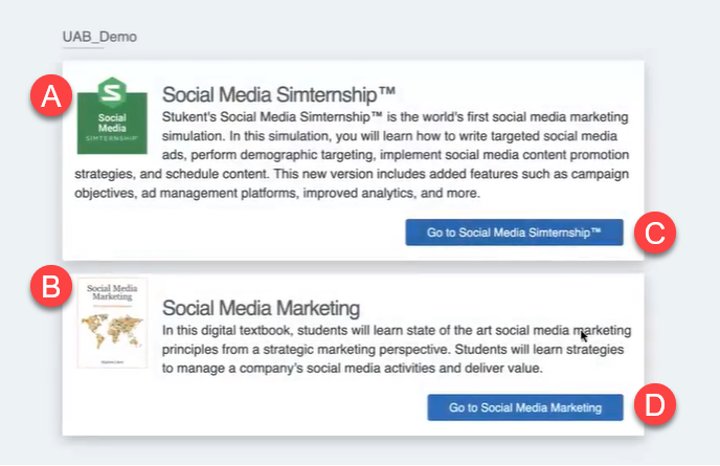
- Once you’ve entered your access code or paid with a card, you will see your purchased course materials (A) and (B) with launch buttons (C) and (D) for each material.
Option 2:
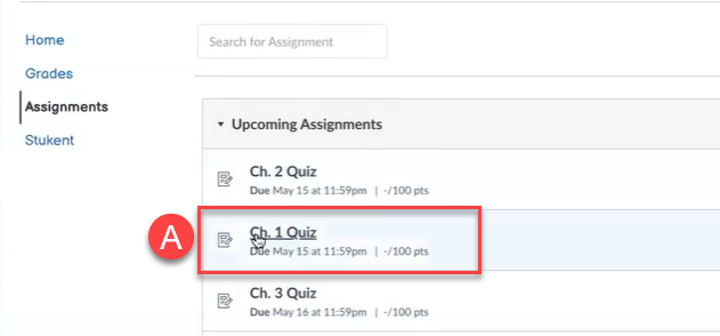
- The second method for launching Stukent is to select a Stukent assignment (A) within the course.
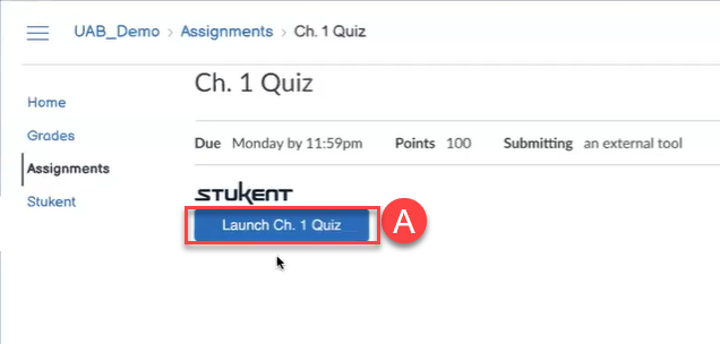
- Next you will see a screen displaying the Stukent logo and assignment launch button (A). Once selected, the Stukent assignment will open within its respective Stukent course material.
Guides/Tutorials
Instructors
- How do I add students to my course?
- How do I create a new course?
- How do I delete a student from my course?
- Does all student work move when transferring a student in MPF (Minic Personal Finance)?
- How to "Act As" your students.
- How can I (the instructor) play through the simulation?
- How do I reset my student to the previous round?
Students
- How do I register?
- How do I redeem my Access Code?
- How do I pay with a Credit Card?
- How do I change my password?
- Why Isn’t My Simulation Running?
- How to take screenshots of your Browser Console.
- Can I reset or replay a previous round of the simulation?
- Mimic Analytics | Results Review- Budget Allocation
- Mimic Marketing Principle | Survey Questions
- Mimic Analytics | How do I Clean the Data, and What Kind of Data do I Remove?
- Mimic Pro | What Should I Bid?
- Mimic Pro | How Do I Create a Shopping Ad?
- Mimic Pro | How Do I Create Display Ads?
FAQ
-
How can I import questions directly from Stukent’s question bank into Canvas?
There are two ways to import question banks from Stukent into Canvas:
- Option1: Using a Stukent provided PowerPoint, instructors can manually enter the questions and answers into Canvas.
- Option 2: Some of Stukent’s authors have provided questions in a QTI file format that can be directly imported into Canvas. If the author of your chosen material has provided a QTI file, you will be able to access it via Stukent in the instructor resource folder. If you need assistance with this step, please submit a request to eLearning.
For additional information, visit the Stukent FAQ webpage for instructor and student frequently asked questions.
Instructor Training
Stukent has a library of recorded Webinars available to faculty and students. Additionally, you can register for Stukent led upcoming training and events.
Technical Support
Please follow the steps below if you need technical support after reviewing the information, guides, and FAQs above.
-
Check Status Page
Status updates and outages reported will be posted onStukent Status Page
-
Contact Stukent Support
Stukent is available for instructors and students Monday-Friday, 7:00 a.m. – 9:00 p.m. and Saturday, 9:00 a.m. – 1:00 p.m. (Central Standard Time).
Contact Stukent support directly via one of the options below.
- Email Support
- Phone: (855) 788-5368
-
Ask Learning Technologies
If these support options do not give a satisfactory resolution, please submit a Learning Technologies Support request and include any ticket numbers provided by Stukent.
Privacy & Accessibility
 Zoom provides cloud video conferencing and simple online meetings. Instructors can now use Zoom Web Conferencing tool within Canvas to provide a virtual classroom experience, record lectures, or host virtual office hours. Users can seamlessly create Zoom meetings, record, and share via Kaltura's Media Gallery inside Canvas.
Features:
- High-quality HD video and audio
- Call-in to meeting’s audio feed using phone
- Easy-to-use tools for collaborating online with others, including sharing and co-annotation tools, breakout rooms, polling, and white-boarding
- Allows for high-quality recordings of meetings and downloading of those recordings as MP4 files
- A full-featured app for iOS and Android
How to Access Zoom
Creating an Account
Click the button below to access or create a UAB Standard Zoom account (non-HIPAA compliant). Faculty and staff are assigned a Licensed account and students are assigned a Basic account. Note: Users do not need an account in order to attend meetings hosted by someone else. Users only need an account if they desire to schedule and host meetings.
Instructors must have an account with UAB in order to use the Zoom tab in Canvas. If you already have a free Zoom account (limited to 40 minute meetings) or an account with UA system and desire to use the Zoom tab in Canvas, follow these instructions to switch to new account. Need help with your account? fill out the academic tech support form.
Faculty/Staff
Licensed Accounts:
- Up to 300 participants
- Unlimited Meeting Duration
- Unlimited amount of meetings
- Record to the cloud or local machine
- Link recordings to Canvas via Kaltura
- Customize Personal Meeting ID/Link URL
Students
Basic Accounts:
- Up to 100 participants
- Limited to 40 minute meetings (When three or more participants join)
- Unlimited amount of meetings
- Record to local machine
Students that need to meet longer than 40 minutes, they can fill out the UA system account request form. Students requesting a licensed(pro) account will be required to provide contact information for their supervisor so that their reason can be confirmed. If approved, the provisioned pro account will be returned to back to basic at the end of that academic year (July 31st).
Signing into Zoom Account
Canvas
Instructors can access Zoom within their Canvas courses by clicking the Zoom tab in the course navigation. Meetings should only be scheduled here if the desired attendees are the students of that course. See Zoom for Teachers Guide for more information.
Web sign-in
Users can access and sign into their UAB Zoom account at uab.zoom.us in a web browser.
Zoom App sign-in
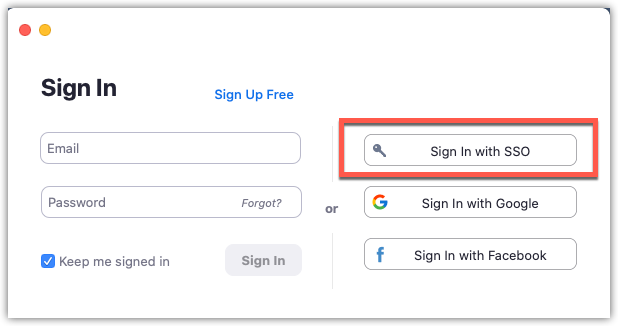
Users can sign in to their UAB Zoom account on the Zoom app (mobile or desktop) by choosing 'Sign in with SSO', typing in UAB as the domain, and providing their BlazerID and Password. See Using the Zoom App Guide for more information.
Downloads
Users can download the latest version of Zoom for the computer and/or mobile device by clicking the Download button below and selecting the desired download from the Zoom website.
Guides/Tutorials and Resources
Instructors
- How to use Zoom in Canvas
- Recording and Sharing Zoom Meetings
- Managing Participants
- Using Zoom Breakout Rooms
- Pre-assign Breakout Rooms in Zoom
- How to Sign in to Zoom app at UAB
- Pulling Zoom Attendance Reports
- Zoom Security: How to Prevent Zoom Bombings
- How to Download Zoom recording and Upload to Kaltura (manually)
- How to Download Recordings and Upload to Box
- Polls in Canvas Zoom Meetings
Basic Zoom Guides
Resources

Students
Basic Zoom Guides
FAQs
Account
-
How do I get an account?
Faculty, staff, and students can create their UAB Standard (Non-HIPAA) zoom account by navigating to uab.zoom.us and clicking the green button that says ‘Sign in' then type in your BlazerID and password. This type of account allows you to use Zoom in Canvas, record to the cloud (faculty/staff), and use Kaltura.
If you need a HIPAA compliant account, you can request your account through the form on the UA system website. Please note HIPPA accounts cannot record or be used in Canvas.
-
What if I need a HIPAA Compliant Account?
Those that plan to use Zoom to meet with patients, discuss Protected Health Information (PHI) or for any other use that would require HIPAA compliance can request a HIPAA compliant account by selecting the HIPAA options on the account request form on the UA system IITS website. Please note this type of account
cannot record or be used in Canvas . -
How do I know what type of account I have?
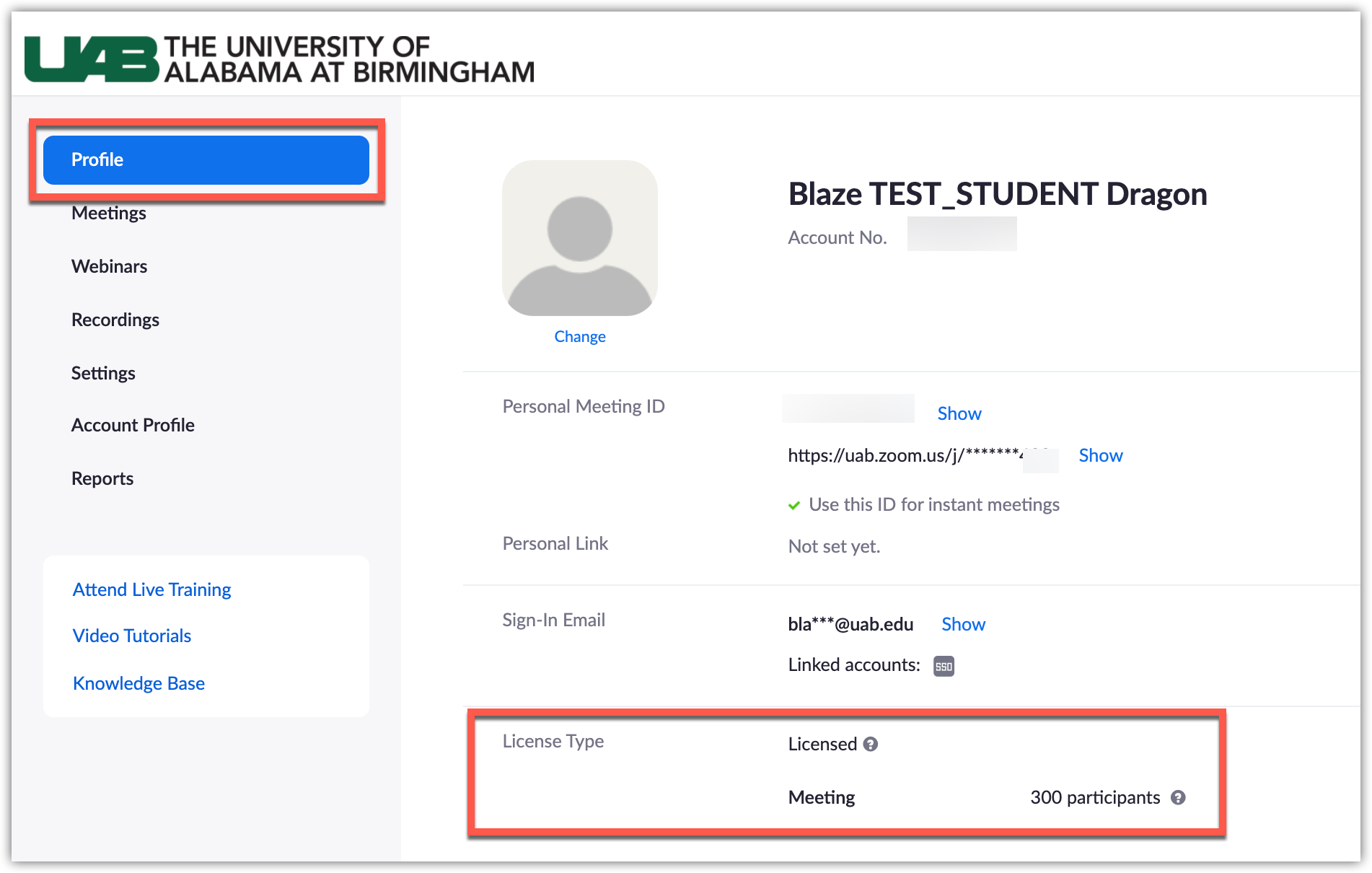
Users either have a Basic or licensed account. Log in to Zoom in a web browser and click Profile at the top left, then look under License Type. Refer the information at the top of this page to see the differences in basic and licensed accounts.
-
How do I know which account I am under?
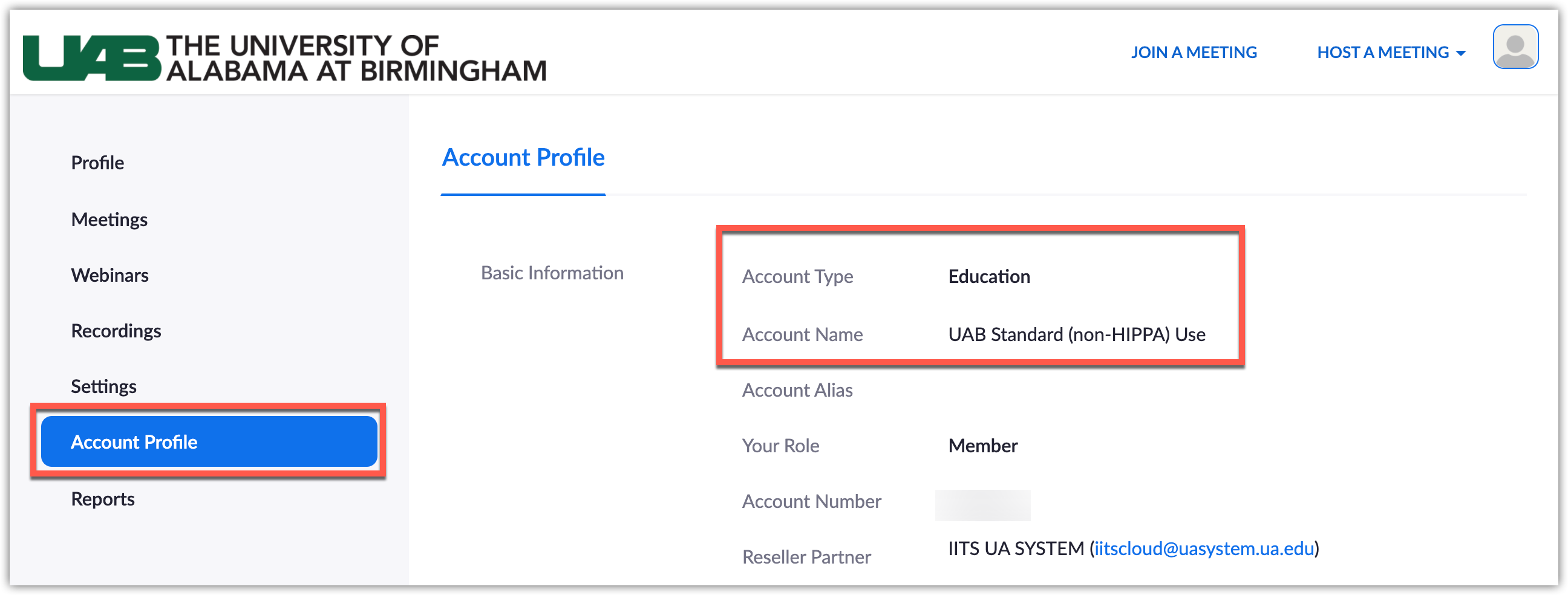
There are two main accounts at UAB: UAB Standard (Non-HIPAA) and UAB HIPAA. Users can log into their Zoom account in a web browser and click Account Profile at the far left, then look and see the type and name of the account they are under.
-
Do my students need to create a Zoom account?
Students do not need to create a Zoom account in order to attend your meetings that you schedule and host. Students only need to create an account if they want to schedule and host their own meetings (ex. group projects).
-
What are the different roles in a Zoom meeting?
There are multiple roles available for a meeting: host, co-host, alternative hosts, and participants. The role that you have in a meeting is designated by the host.
- Host: The user that scheduled the meeting. They have full permissions to manage the meeting. There can only be one host of a meeting.
- Co-hosts: Shares most of the controls that hosts have, allowing the co-host to manage the administrative side of the meeting, such as managing attendees. The host must assign a co-host during the meeting. Co-hosts cannot start a meeting. If a host needs someone else to start the meeting, they can assign an alternative host.
- Alternative hosts: Shares the same controls as co-hosts, but can also start the meeting. Hosts can assign alternative hosts when they schedule a meeting.
-
What is the difference in Zoom meetings and webinars?
Feature Meeting Webinar Description Zoom meetings are ideal for hosting more interactive sessions where you’ll want to have lots of audience participation or break your session into smaller groups. Think of webinars like a virtual lecture hall or auditorium. Webinars are ideal for large audiences or events that are open to the public. Typically, webinar attendees do not interact with one another. Though Zoom provides options for you to get more social with your attendees, your average webinar has one or a few people speaking to an audience. Participant roles Audio sharing - All participants can mute/unmute their own audio
- Host can mute/request to unmute participants
- The Host can set all participants to mute upon entry
- Only the Host and panelists can mute/unmute their own audio
- Attendees join in listen-only mode
- The Host can unmute one or more attendees
Video sharing All participants Hosts and panelists Screen sharing ✔ ✔ Capacity 100 participants for basic users 300 participants for licensed Up to 100-10,000 participants, depending on the paid license. Participants list Visible to all participants Visible to host and panelist Email reminders If registration is enabled Chat In-meeting Chat Webinar Chat Meeting reactions ✔ Nonverbal feedback ✔ Only raise hand Q&A ✔ File transfer ✔ Whiteboard ✔ ✔ Annotation ✔ ✔ Polling Polling for meetings Polling for webinars Livestream Facebook, YouTube, Workplace by Facebook, Custom Streaming Service Facebook, YouTube, Workplace by Facebook, Custom Streaming Service Registration Registration for meetings Registration for webinars Closed captioning ✔ ✔ Recording ✔ ✔ Breakout rooms ✔ Practice session ✔ Waiting room ✔ New Insights into the Role of the CNS Melanocortin System in the Control of Food Intake and Body Weight Paypal integration ✔ Require password to join ✔ ✔ International dial-in numbers ✔ ✔ -
How do I purchase a webinar license?
The UA system IITS office offers webinar licenses for purchase. More information on pricing and ordering can be found on the UA system website. Users interested in renting a webinar license for a specific event can contact University Relations for up to 5,000 attendees.
-
What if my students need to schedule and host meetings for longer than 40 minutes?
Students are given a basic account that is limited to 40 minute meetings. They can schedule as many back to back meetings as desired. If students still need to meet longer than 40 minutes, they can fill out the UA system account request form. Students requesting a licensed(pro) account will be required to provide contact information for their supervisor so that their reason can be confirmed. If approved, students accounts will be returned to back to basic accounts after the end of that academic year (July 31st).
Alternatively, students can use an alternative technology such as Microsoft Teams Meetings.
-
Can Zoom be accessed on a Mobile device?
Yes. There are official free apps available for iOS and Android. The apps support many of Zoom’s features, including hosting meetings and viewing screen sharing. Zoom also includes built-in support for calling in to a meeting over telephone.
-
What do I do if I receive an error when accessing Zoom in Canvas?
Instructions are provided below based on the error code received. If you need additional assistance accessing Zoom inside Canvas, fill out the eLearning Academic Technology Support form.
Error Code 1010: User Not Found on this Account
This code appears because you either have a free (basic) zoom account or a UA systems account and must transfer your account to UAB eLearning in order to access Zoom in Canvas.
- Go to uab.zoom.us/saml/login.
- Type in your BlazerID and Password if prompted.
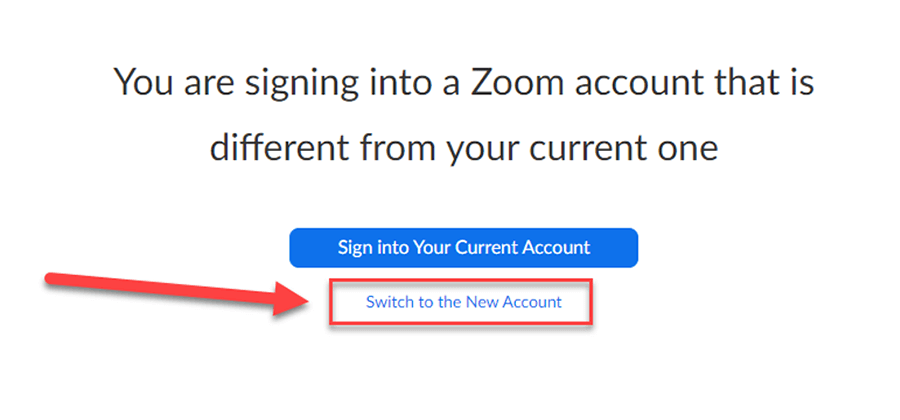
- If asked, click "Switch to the New Account" option.
- Click the "Confirm your email address" button when prompted.
- An email will be sent to your UAB email address from no-reply@ zoom.us. (It may take a few minutes.)
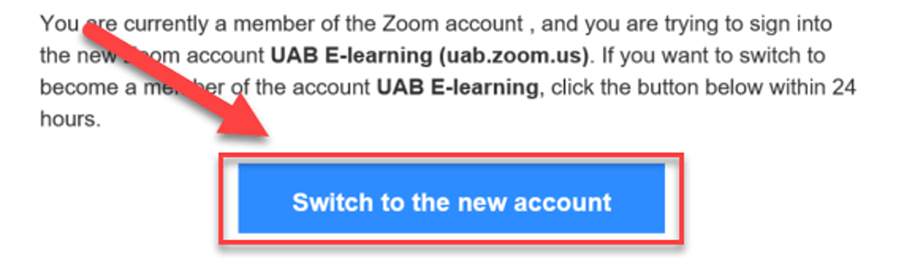
- Click the "Switch to the new account button" found in the email.
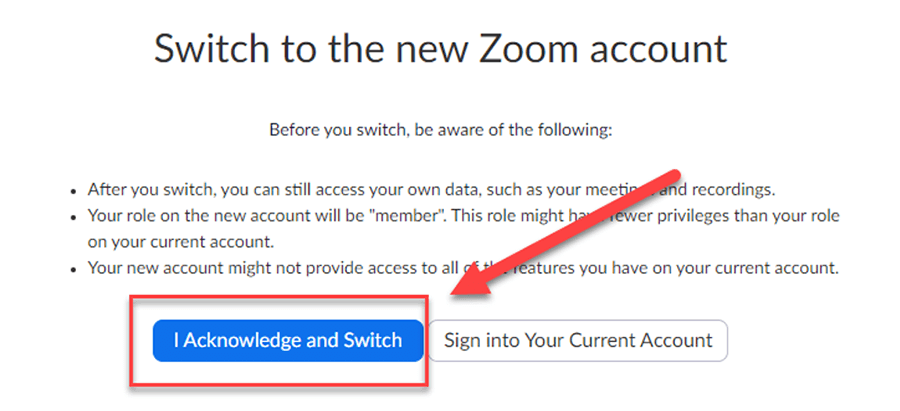
- Click the "I Acknowledge and Switch" button, when prompted.
- Your account is now under UAB eLearning and can be used in Canvas. Reattempt to access the Zoom tab in Canvas.
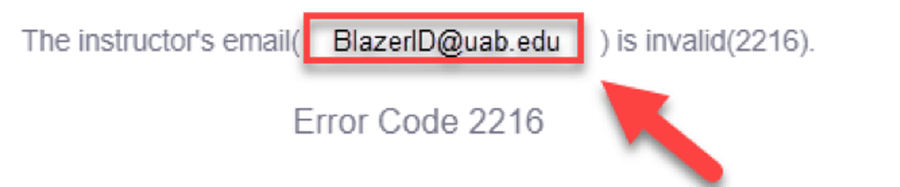
Error Code 2216: The Instructor’s Email is Invalid
This error appears because you do not have a Zoom account or because you do not have your @uab.edu email address as your default email in Canvas.
If the email listed in the error message is your @uab.edu email address then follow the directions below to create a UAB eLearning Zoom account.
- Go to https://uab.zoom.us/saml/login.
- Type in BlazerID and Password if prompted.
- You now have a UAB eLearning Zoom account that can be used with Canvas.
If the email listed in the error code is not your “@uab.edu” email address follow these steps:
- Use the instructions in this Canvas Guide to change the Default email address in Canvas to your @uab.edu address.
- Once that process is complete, attempt to access Zoom inside Canvas again.
If you need additional assistance accessing Zoom inside Canvas, fill out the eLearning Academic Technology Support form.
-
Why did I get an email saying someone joined my meeting?
By default, Zoom will notify you if someone has clicked the link to join your meeting before you have started it. This can be useful, if you have forgotten you had a scheduled meeting or you are using Zoom for office hours.
It is possible that the user clicked on the link early by accident. If you do not know the user, it is possible that they typed in your meeting ID by mistake trying to get into another meeting.
As long as you do not have ‘Enable join before host’ enabled in your meeting, the user that clicks your link does not actually get into your meeting unless you have started the meeting, so there is no security threat. We recommend enabling a password and/or using the waiting room so that you can prevent any undesired users from entering your meeting while in progress.
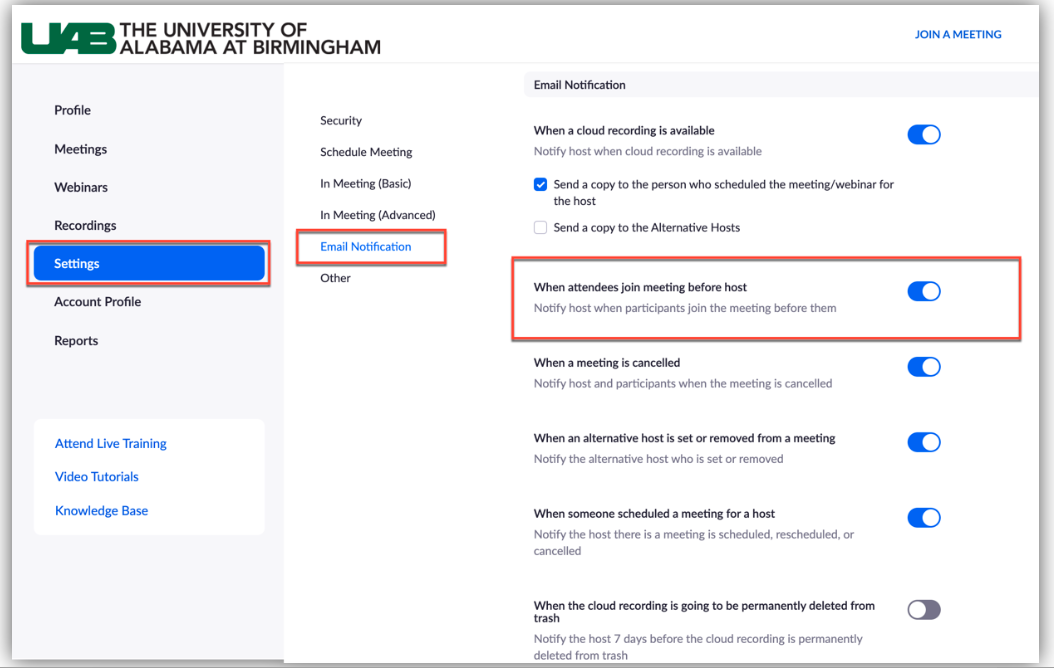
If you would like to turn off this automatic email notification, follow these directions.
- Log in to uab.zoom.us.
- Click Settings, then click Email Notification.
- Click the toggle to turn off notification for “When attendees join meeting before host”
Scheduling Meetings
-
How do I schedule a meeting?
You can schedule a Zoom meeting through various methods:
- Zoom tab in Canvas: If you are scheduling a meeting for your students to attend. The best method is to schedule the meeting within Canvas using the Zoom tab in your course. The meeting will be available to your students automatically and does not require you to send any invitations out. Use our Instructor Guide to Canvas to learn more.
- Zoom website (uab.zoom.us): Meetings can be scheduled from any web-enabled device by going to uab.zoom.us, clicking meetings on the left hand side, and then clicking Schedule a Meeting. When your meeting is saved, you will be presented several methods of inviting users to that meeting including calendar invitations, a join link, or a full invitation.
- Zoom App: Meetings can be scheduled in the Zoom application on your computer or mobile phone. Sign into your UAB eLearning account by clicking SSO, typing in UAB as the domain, and then providing your BlazerID and password. Use our Zoom app guide to learn more.
- Extensions: Meetings can be scheduled using one of the various extensions available for Outlook, Chrome, or FireFox. Download extensions.
-
How do I schedule a meeting to reoccur?
- Access one of the above methods and click Schedule a Meeting.
- Check Recurring Meeting.

- Edit the recurrence. This includes the number of times the meeting occurs and how often it occurs.
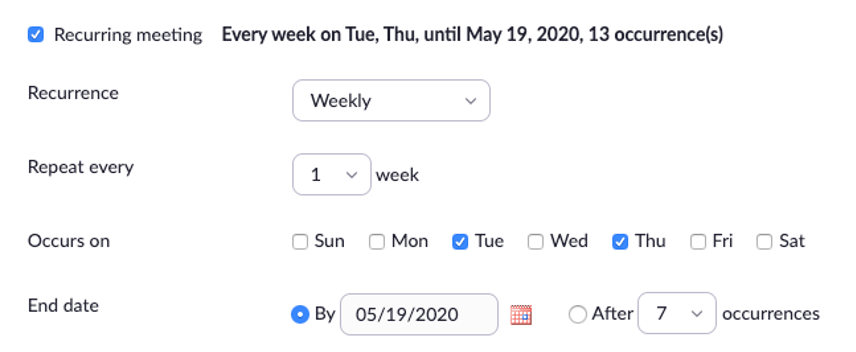
- Note: Recurring meetings can have a maximum of 50 occurrences. If you need more than 50 occurrences, you can use the No Fixed Time option.
- If registration is required and the meeting is recurring, specify one of the following options:
- Attendees register once and can attend any of the occurrences: Registrants can attend all of the occurrences. All dates and times of the meeting will be listed and the registrant will be registered for all occurrences.
- Attendees need to register for each occurrence to attend: Registrants need to register separately for each occurrence to attend. They can only choose one date and time on the registrant page.
- Attendees register once and can choose one or more occurrences to attend: Registrants register once and can choose one or more occurrences to attend. They will need to select which dates and times they would like to attend and they will only be registered for those occurrences. They can choose multiple options.
- Click Save.
- Finish selecting the meeting options and click Schedule.
Visit this Zoom Guide for more information on reoccurring meetings.
-
Can I schedule one meeting to show up in more than one Canvas course?
Option 1 - Use Personal Meeting ID in scheduled meetings
You can schedule a Zoom meeting in each shell separately at the same date/time, but check the box for ‘use personal meeting ID’. This will make it so that each course sees the meeting in their Canvas shell through the Zoom tab and there are two separate scheduled meetings, but in the backend they tie to the same meeting so all will be able to join at the same time.
Please Note: This option is not available if you choose to make the meeting reoccurring, so you will need to schedule each desired meeting individually.


Option 2 - Schedule outside of Canvas and paste the Join information in the Canvas course
You can schedule one meeting outside of Canvas at uab.zoom.us set it to reoccurring and then just place the join link in all desired Canvas courses (on a page, syllabus, announcement etc.)
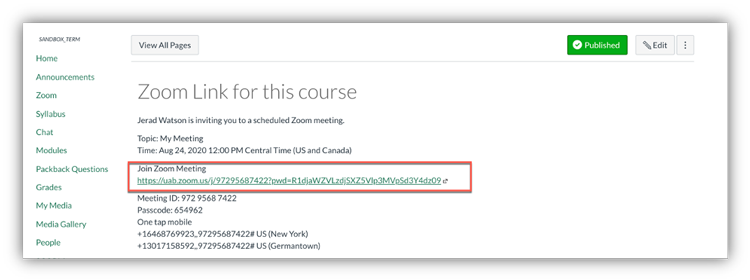
Option 3 - Schedule one of the meetings in one of the Canvas Shells and provide other courses join information
You can schedule the Zoom meeting in one of your Canvas courses and then grab the join link or full invitation from that meeting and place that information in the other Canvas courses (on a page, syllabus, announcement, etc.)
Option 4 – Consider Cross-listing Courses
If you have several Canvas course shells for a course that meets at the same time, one option is to consider cross-listing your Canvas course shells into 1 course shell, especially if each group of students complete the same work but just have different due dates. This brings all the students into one course shell, where you can schedule just one Zoom meeting for all students as well as provide content, assignments, etc. all in one shell. Request your courses be cross-listed on the eLearning Canvas Request webpage.
Please Note: Crosslistings should be done before the semester begins and cannot be done after students have made submissions in any of the course shells.
-
How and why would I require Registration?
Registration can be used to make a public facing meeting more secure. You can set registration to manual or automatic approval. You can also use registration to collect information before a meeting begins and be able to send event reminders and follow up emails
To require registration:
- Choose a method to access Zoom and Click Schedule a Meeting.
- Click the box beside Registration.
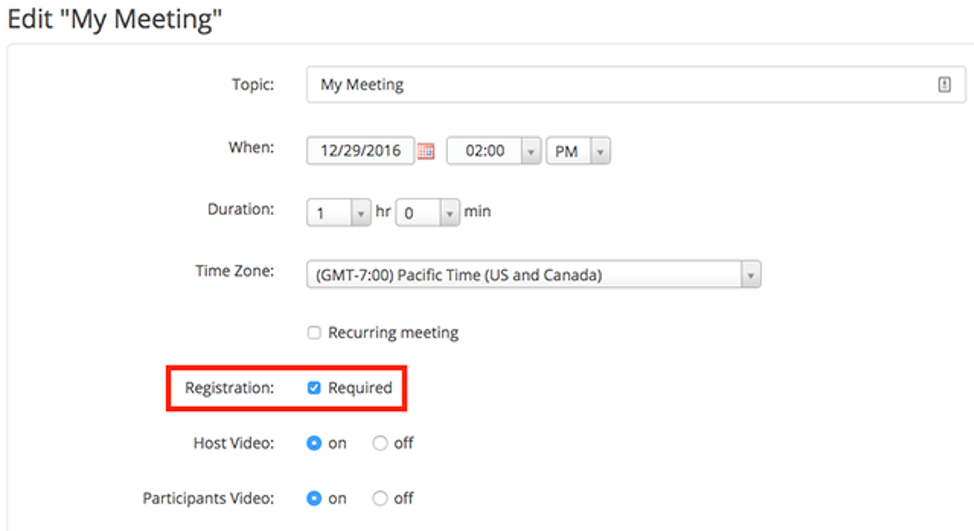
- If you are in Canvas, you will need to save the meeting and login to uab.zoom.us in order to access the registration settings. If you are already in uab.zoom.us you can save your meeting and the registration settings will be available at the bottom of the screen.
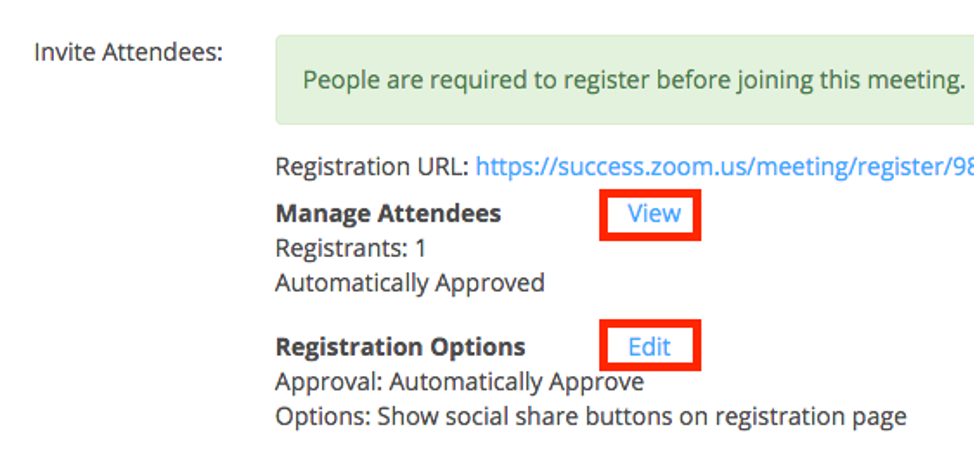
Visit this Zoom Guide for more information on registration.
-
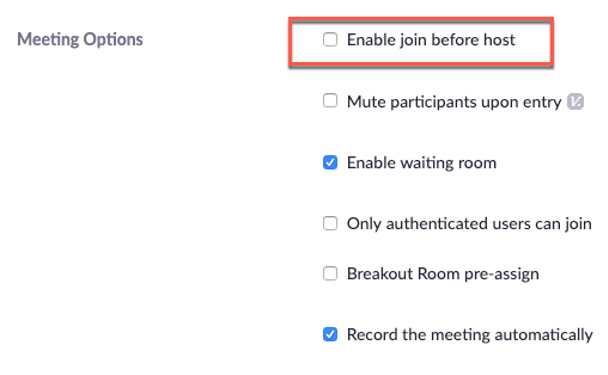
What is Join before Host?
Join before host allows attendees to join the meeting before the host joins or when the host cannot attend the meeting.
If you select join before host, then the participants can join the meeting before the host joins or without the host.
If you do not select join before host, the participants will see a pop up dialog that says "The meeting is waiting for the host to join." If you are the host, there is a login button to login and start the meeting as the host.
To allow join before host, click this option when scheduling a meeting or edit an already scheduled meeting and select this option.
Notes:
- If the host does not join the meeting or is not logged in when joining, there are no host controls such as recording, mute/unmute all, lock meeting or remove attendees.
- When Join Before Host is on, the host can join the meeting without being logged in. If you are the host, but do not have host controls such as recording, leave the meeting and login in the Zoom application. Start the meeting again from your Meetings list.
- If one meeting is running and someone tries to start a second meeting with join before host on scheduled by the same host:
- If started by a Zoom Room, the second meeting will start and close the first meeting without warning.
- If started by the host, they will have the option to close the first meeting and start the second.
- If started by a participant, they will receive a message that the host has another meeting in progress.
- If Waiting Room is turned on in your meeting settings, Join Before Host will not work for your meetings.
- If you would like the meeting to be recorded without the host attending, you will need to turn on Automatic Cloud recording for the meeting.
Visit this Zoom Guide for more information on the Join Before Host feature.
-
What is an alternative host and why will it not let me add someone?
By default a meeting cannot begin until the host starts the meeting. Adding someone as an alternative host allows this person to start the meeting in the absence of the original host.
Many users confuse co-host and alternative host. The main use of an alternate host is so that they can start the meeting in the absence of the main host. The main use of co-host is so that someone else can manage participants, etc. Anyone can be a co-host once in the meeting regardless of their account type. Learn more about selecting someone as a co-host.
Requirements of Alternative Host
- Both the host and alternative host have to have Pro Licenses (cannot add students as alternative hosts).
- Both the host and alternative host have to be on the same account/sub-account (uab.zoom.us is separate from zoom.us and uasystem.zoom.us).
- Must use uab.edu email, not uabmc.edu.
Related Information
- Users do not need to be added as alternative host in order to share their screen/webcam and present. All attendees automatically have this ability.
- If you want allow the meeting to be started without you, you can edit your scheduled meeting to allow join before host. Note: Anyone who click the join link will start the meeting.
Students are given a basic account that is limited to 40 minute meetings by default. If students still need a pro account because they are a TA, they can fill out the UA system account request form. Students requesting a licensed(pro) account will be required to provide contact information for their supervisor (instructor) so that their reason can be confirmed. If approved, students accounts will be returned to back to basic accounts after the end of that academic year (July 31st).
-
How do I schedule meetings for other people?
There are times when an administrative assistant may need to schedule meetings for another person. There are three options for how to do this, shown below.
Option 1: Scheduling Privileges
Users can give other individuals permissions to schedule meetings for them. This allows a user to schedule a meeting and choose who this meeting is being scheduling for (Me or other user). If you choose to schedule a meeting for another user, it will actually schedule the meeting in their account. This means that person can start the meeting without you being present and any recordings will be in their account, not yours. If you choose to join the meeting you scheduled for another user, you will automatically be a co-host who can help manage participants. See below for how to assign scheduling privileges.
Prerequisites
- You and the person you want to schedule meetings for have to be on the same account (UA system and UAB eLearning are different accounts).
- You and the assigned scheduler must be assigned as Licensed (pro account, not basic).
Set up Instructions
The user that wants to give the permission for someone to schedule for them should follow these instructions:
- Sign in to the Zoom web portal.
- Click Settings.
- Click Other, scroll down, and click the + next to Assign scheduling privilege to.
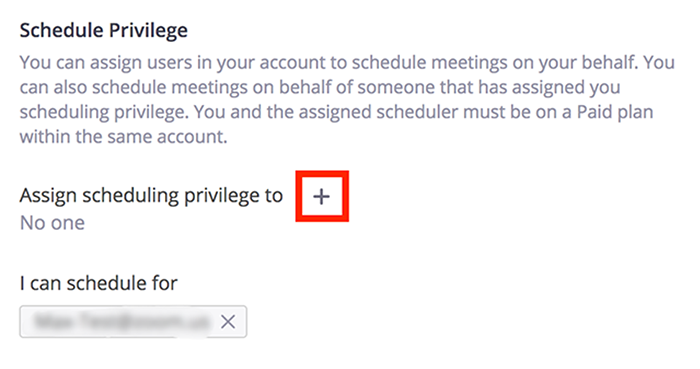
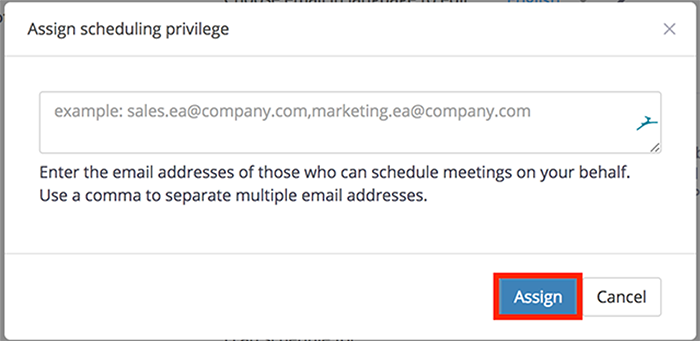
- Enter one or more email addresses in the window, separated with a comma.
- Click Assign.
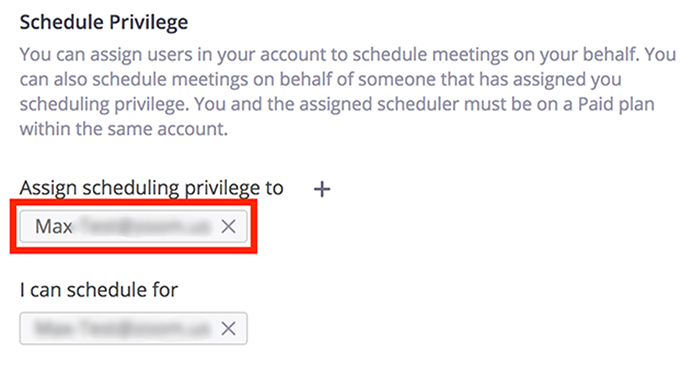
If the user was assigned successfully, they will appear under Assign Scheduling Privilege to. However, they will need to sign out of the Zoom desktop client and sign in again before they will be able to schedule for you there.
If scheduling privilege cannot be assigned because the user is not on your account or is not a Pro user, you will receive an error message.
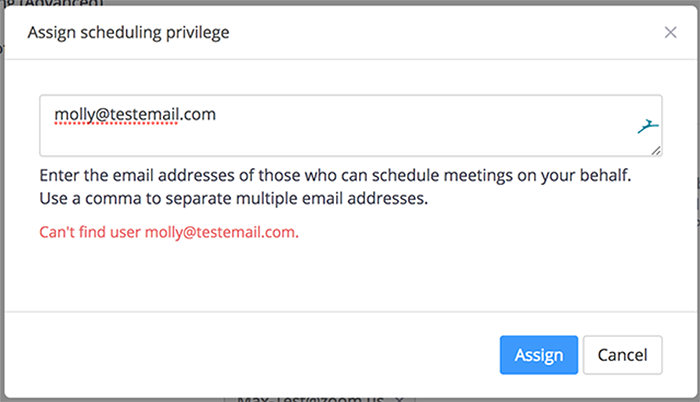
Once completed, see these instructions for how to schedule meetings for other people.
Option 2: Alternative Host
You can also put someone as alternative host for your meeting. This allows them to start the meeting on your behalf, but the meeting is still in your account. This allows the recordings of meetings to remain in your account; however, you are unable to have a separate meeting while these meetings are going on.
See the FAQ question "What is an alternative host and why will it not let me add someone?" above for more information.
Option 3: Enable Join before Host
This allows anyone who has the join link to start the meeting. There are definite limitations on this when using Waiting Room or wanting the meeting to be recorded, but is a quick fix if the meeting is about to happen and you cannot join.
See the FAQ question "What is Join before Host?" above for more information.
-
I scheduled outside of Canvas, how do I import it into a Canvas course?
Meetings scheduled outside of Canvas can be imported into a Canvas course. Follow the directions below.
Please note that meetings can only be imported into 1 Canvas course.
- Locate the scheduled Zoom meeting and copy the Meeting ID.
- Go to desired Canvas course and click the Zoom tab in the course navigation.
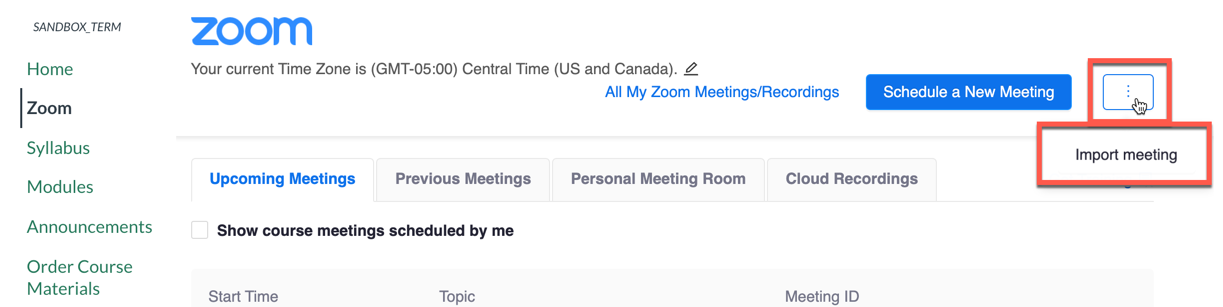
- Click the 3 dots at the top right and select Import Meeting.
- Paste or type in the meeting ID of the meeting you want to be available to this course.
- Students in this course can then access and join the meeting from Canvas.
-
Can I schedule a standing room (meeting) that can be used repeatedly like the Personal Meeting Room without setting specific dates?
Users can schedule a meeting and set it to reoccur at “no set time”. This allows this meeting to be used repeatedly at any time with the join link and other settings staying the same.
- Go to uab.zoom.us
- Click Meetings on the left hand side
- Click Schedule a new meeting
- Fill in title and other information
- Check the box for the meeting to reoccur.
- Choose “no fixed time” as the occurrence drop down window.
- Save the meeting.
Teaching (Features)
-
How many people can join my meetings?
Instructors are provided an account that allows up to 300 participants.
-
Can I share my slides in a Zoom meeting?
Yes, with Zoom you have the ability to share your audio, webcam, and computer screen. You can share your screen, pull up your slides full screen, and present like you would in class. Your students are seeing what you see on your screen and hearing you talk over them.
-
How do I invite my students to my Zoom meeting?
It is best to schedule your Zoom meeting in the Zoom tab in Canvas. Meetings scheduled in a Canvas course are automatically available for students to join by clicking join in the Zoom tab in Canvas or course calendar/to-do list.
If you scheduled a meeting outside of Canvas, you can either share the meeting link in a Canvas announcement module or import that meeting into Zoom tab in Canvas.
-
How do invite a guest (external to Canvas course) to a Zoom meeting?
Students do not have to be provided the Zoom join link if you schedule your meeting inside of Canvas, but anyone outside of Canvas will need to be provided the join link or invitation to your Zoom meeting so they can join.
Simply invite external speakers to the meeting by sending them the Zoom invitation/join link.
-
How do I allow a guest speaker or student to share their screen and present?
You do not have to do anything special to allow someone in a meeting to share their screen. The default settings of Zoom allows any attendee in your meeting to share their screen, webcam, and audio. Simply invite external speakers to the meeting by sending them the Zoom invitation/join link.
Note: If the host is sharing their screen, it will not let an attendee share their screen. All you have to do is stop sharing your screen and then they can.
-
What is a co-host?
Co-host are people you allow to have similar features as you, meaning they can manage participants. Note: You do not have to make someone a co-host to share their screen or present. All attendees have this ability by default.
You can make anyone in your meeting a co-host once the meeting has begun.
-
Can I annotate on my PowerPoint or shared screen?
Yes, the host and attendees can draw, highlight, stamp, and place arrows or a laser on a virtual whiteboard or whatever is shared on the screen such as a PowerPoint.
-
How can students ask questions or engage during the meeting?
- Students can unmute their microphone and ask questions during a meeting
- Students can type their question in the Chat box. Items typed in chat are seen by the host and all attendees by default
- Students can respond using non-verbal communication (yes, no, thumbs up, thumbs down, hand wave, etc. )
- Students can also annotate on a white board or shared screen
-
Can I poll my students?
Yes, there is a polling feature that is turned on by default. It is best to create your polls beforehand. You can create up to 10 sets of 25 polls. Your options are single choice or multiple choice questions. When you present a poll, you can see the results privately and then choose to share the results to all in the meeting. You can also run a report at the end to show what everyone answered.
-
How do I manage students (attendees) in my Zoom room?
Hosts and co-hosts can mute/un-mute individuals or all participants, change who attendees can chat to, and choose who can share their screen. Learn more about managing attendees.
-
What is a breakout room?
Breakout rooms are a feature that is enabled by default in the toolbar of Zoom. It allows you to break your total attendees into separate Zoom sessions for an amount of time. The groups can be made manually or automatically on the fly. Once you send everyone into a breakout room, the host and co-host can pop in to one breakout room at a time to see how things are going or to assist students.
Note: Breakout rooms are not included in the Zoom cloud recording. Students placed in the breakout room can record the breakout room session locally to their device.
-
How do I assign students to a breakout room?
Option 1
Breakout Rooms can be created once in a meeting. You can have Zoom randomly assign students into a desired amount of rooms or you can manually assign which participants are in each room.
Option 2 (advanced)
Zoom also has the ability to pre-assign breakout rooms before a Zoom meeting begins though this feature only exist outside of Canvas. If you choose to use this feature, please follow the instructions below.
- Schedule meeting at uab.zoom.us
- Check the boxes for (both check boxes are required for it to work)
- Only allow authenticated users to join
- Pre-Assign Breakout Rooms
- Upload a CSV of the breakout rooms and who you want to be placed in those rooms (@uab.edu emails) Note: CSV is case sensitive and must use all lowercase for emails
- Share the meeting join links with students by sending an announcement, email, etc. or import the meeting into your Canvas shell using the 3 dots at the top right of the Zoom tab in Canvas and typing the meeting ID in (meetings can only be imported into one Canvas shell).
- Tell your students they will be asked to sign in when joining your meeting (this is the only way it will know who they are and what room to put them in). They will have to sign in using SSO (Single Sign On = BlazerID/Password). Here is a guide on how to sign-in to Zoom on phone or computer when joining a meeting.
When your students join, it will pair them with the emails you pre-assigned. When you are ready to send them to their breakout rooms, click ‘Break out rooms’ in the Zoom toolbar and click ‘Open All Rooms’. If you see anyone left over not assigned, you can assign them to a room manually.
-
How do I use a virtual background?
Virtual background is a feature that can replace your background behind you when sharing your webcam with a static image or video. Not all computers meet the required technical specifications to use this feature.
To use a virtual background:
Before Meeting
- Open the Zoom application on your computer and sign in using SS0 (Single Sign-On, BlazerID)
- Click your profile picture at the top right, then click Settings.
- Select Virtual Background.
- Check I have a green screen if you have a physical green screen set up. You can then click on your video to select the correct color for the green screen.
- Click on an image to select the desired virtual background or add your own image by clicking + and choosing if you want to upload an image or a video.
- If prompted, click Download to download the package for virtual background without a green screen.
During a Meeting
- In a Zoom meeting click the ^ arrow next to Start/Stop Video.
- Click Choose a virtual background...

- Ensure that you are using a solid background color for best performance.
- After you select an option, that virtual background will display during your meetings.
- To disable Virtual Background, choose the option None.
Notes:
-
How can I use Zoom for Office hours?
Below are a few suggestions:
Option 1
Instructors can schedule a Zoom meeting and call it “office hours’ using the Zoom tab in Canvas and allow multiple students to come in and ask questions during that time. You would simple start this meeting, continue working on your computer, and would hear the doorbell when a student enters so that you can attend to their questions.
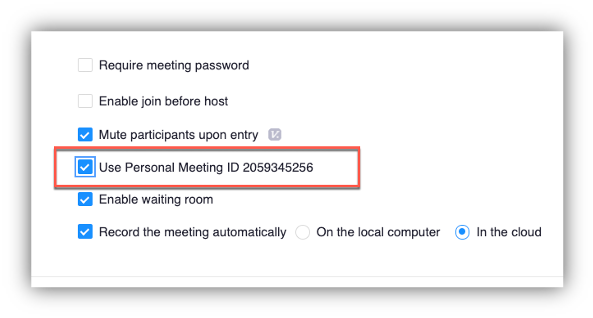
If you want your office hours to be available to multiple classes at the same time, you can click the checkbox in the meeting options to ‘use personal meeting ID’. This will allow everyone from multiple classes to join into the same meeting. *This option is not available for reoccurring meetings.
Option 2
Instructors can also have students email you or book a time with you in some other format (Microsoft bookings, excel sheet sign up, Canvas Calendar appointment groups) and have one-on-one meetings with students through Zoom. You can also use your personal meeting room for this, but we recommend that you click the “enable waiting room’ option so that if another student tries to join while you are meeting with a student, you can admit them in or message them to let them know you will be with them shortly.

-
How do I share my screen?
- The host and attendee can screen share by clicking the Share Screen icon
 .
. - The host does not need to grant screen share access for another participant to share their screen.
- The host can prevent participants from accessing screen share.
- The host and attendee can screen share by clicking the Share Screen icon
-
How do I share a video/music in a Zoom meeting?
When choosing to share your screen there are two checkboxes at the bottom you should consider enabling.
- Check Share Computer Sound: If you check this option, any sound played by your computer will be shared in the meeting.
- Check Optimize for full screen video clip: Check this if you will be sharing a video clip in full screen mode. Do not check this otherwise, as it may cause the shared screen to be blurry.
If you have already started sharing your screen you can find these option in the 3 dots (More button the toolbar).
-
What is private chat and how do I turn it on?
Private chat means a participant of a Zoom meeting can chat privately with another participant without the host knowing. Private chat is now turned off by default within Zoom UAB eLearning Zoom accounts. Right now Hosts are the only ones that can privately chat with a participant. Participants can only chat with everyone in the room or the host. You can re-enable it in your account by going to you Zoom account in a web browser, clicking settings button on the left, and toggling the ‘private chat’ feature. This allows private chat for all future meetings you schedule and host.
-
How do I track attendance in Zoom meetings?
Attendance in a Zoom meeting is accessible as a Usage Report. A Zoom Usage Report displays how many and who attended the meeting.
Learn more about pulling Zoom reports. Additionally, instructors can also pull reports from Zoom in Canvas if the meeting was scheduled there.
Security
-
Is Zoom secure? Can an unwanted user join my meeting?
Any user that has the join link to your Meeting can join in. Avoid publicly posting your meeting link, especially your personal meeting room link. Other security measures are shown below.
Set a Meeting Password
This makes it so that users trying to join by typing a meeting ID in will also have to know the password. Users joining from Canvas or by clicking a join link will not have to know the meeting password. This settings is automatically turned on for all users on the UAB eLearning account.
Enable Waiting Room
This makes it so that users joining your meeting do not immediately join the room but see a screen letting them know the host will let them in soon. The host of the meeting is notified when someone is in the meeting room and can admit them in or message them privately. This feature is turned on for all meetings by default, but can be unchecked if desired. This option is great to turn on for your personal meeting room.
Lock the Meeting
Once a meeting starts, the host can lock the meeting (found in the participants tab). This prevents anyone from joining even if they have the join link and password.
-
What should I do if someone is disturbing a Zoom meeting?
If an unwanted person were to join your meeting or a student were to misbehave in a Zoom session, the host can remove participants from a meeting. Note that this user will be unable to join the same meeting.
-
What if I do not want participants to share their screen?
By default, all users can share their screen in a Zoom meeting. You can restrict the ability to share a screen to just the host once in the meeting or in your account settings for all future meetings if desired.
Recordings
-
How do I record my Zoom meeting?
You can start recording once a meeting has started or set a meeting to automatically record when scheduling the meeting. Finally, users canset all meetings to be recorded for their account.
-
What are my recording options?
Users have the ability to record to the cloud or locally to their machine. Recording locally to the computer will produce a mp4 video file while recording to the cloud records it in Zoom’s servers and Kaltura.
-
Are Zoom Cloud recordings deleted?
Meetings recorded to the cloud are deleted after 30 days from Zoom servers. Zoom meetings are automatically sent to Kaltura (My Media) and are not deleted from Kaltura. Learn how to share Kaltura videos in or out of Canvas here.
-
How do I share a Zoom Cloud recording?
Videos recorded to the cloud can be shared in the following ways.
Kaltura – My Media/Media Gallery (Canvas)
Users can share videos through Kaltura in Canvas. Videos are private in the user’s My Media at first and can be shared when ready. Users can also share videos with users outside of Canvas using mediaspace.uab.edu.
Zoom Cloud Recordings Tab (Canvas)
Instructors can publish chosen recordings by clicking the publish toggle in the Zoom Cloud Recordings tab in Canvas. The meeting will NOT be available after 30 days.
Zoom Recordings Link (outside Canvas)
Users can get the recording link from the Recordings tab at uab.zoom.us and then share that link with desired users (internal and external). The recording will not be available after 30 days.
-
Can more than one person record in a meeting?
Yes, the host can assign multiple participants the ability to record the meeting locally to their device in addition to him/herself.
Student Specific Questions
-
How do I join my instructor’s meeting? Do I need an account?
Students do not need a Zoom account in order to join Zoom meetings by default. Just click the Join button beside the meeting title in Canvas, or the join link provided by your instructor.
More information can be found in our Student Zoom Guide.
-
Can Zoom be accessed from a smart phone?
Yes. There are official free apps available for iOS and Android. The apps support many of Zoom’s features, including hosting meetings and viewing screen sharing. Zoom also includes built-in support for calling in to a meeting over telephone.
-
Can students host Zoom meetings?
Students can create a Zoom account by clicking the green button that says ‘log into/create Zoom Account’ on the eLearning Zoom webpage. Students are provisioned a basic account that allows them to schedule and host meetings with up to 100 participants and is limited to 40 minutes in length. Students can schedule an unlimited amount of meetings.
-
What if I need to meet longer than 40 minutes?
Students are given a basic account that is limited to 40 minute meetings. They can schedule as many back to back meetings as desired. If students still need to meet longer than 40 minutes, fill out the UA system account request form. Students requesting a licensed(pro) account will be required to provide contact information for their supervisor so that their reason can be confirmed. If approved, students accounts will be returned to back to basic accounts after the end of that academic year (July 31st).
Alternatively, students can take advantage of other video conferencing tools such as Microsoft Teams that does not have a time limit on meetings. More information on Microsoft Teams is available on the UAB IT website.
-
Can I record my meetings?
Students can record meetings they host locally to their computer. Meaning a MP4 file will be available on their device once the meeting is completed.
Instructor Training
Archived Workshops
Zoom Basics
Zoom Advanced
Technical Support
Please follow the steps below if you need technical support after reviewing the information, guides, and FAQs above.
-
Check Zoom Status page
Zoom Status Page -Check to see if there are any known system wide issues that would explain your issue. -
Contact Zoom Support
Contact Zoom support directly via one of the options below.
- Create a Ticket
- Live Chat is available to users via the blue help button at the bottom right of the Zoom support page. Note: Users must first type in a search and then click the contact us/Live chat button to see the chat option.
-
Contact Local UAB Support
If Zoom's technical support could not fix your issue and the answer to your issue cannot be found in the information, guides, and FAQs on this page, please contact UAB's local support option for your type Zoom of account.
-
Ask Learning Technologies (academic accounts)
Instructors and students who still need help after reviewing the resources on this page or contacting Zoom technical support can request support from UAB eLearning using the link below.
Contact UA System IITS (non-academic and HIPAA use accounts)
Users of Zoom that need support in using Zoom for non-academic purposes and/or their HIPAA compliant account should contact the UA system IITS office.
- Submit a ticket
- 205.975.6854
Privacy & Accessibility
 Poll Everywhere is a web-based audience response system that lets you embed interactive activities such as polls, questions, and competitions into presentations. On the surface, Poll Everywhere is a simple application that works well for live audiences using mobile devices like phones. People participate by visiting a fast mobile-friendly web page/app or sending text messages. Instructions are displayed on-screen. The poll that is embedded within the presentation or web page will update in real time.
See Poll Everywhere compared to iClicker and Zoom Polls here.
Features:
- Gather responses to gauge students’ comprehension before moving on
- Poll students and display class results instantly
- Increase and manage student participation and interaction
- Engage students with competitions (similar to Kahoot)
- Students can respond via computer, tablet, or phone
- Reduce time on administrative tasks such as grading and attendance
- Interactive Q&A feature
- Customize Poll results
How to Access Poll Everywhere
Instructors
UAB faculty have access to Poll Everywhere Pro accounts:
- No limit on the amount of responses per poll
- Access to the reporting feature
- Customize poll URL
- Response segmentation
- Moderation
- Automatic Censoring
- Access to PowerPoint plug-in

Staff/Students
UAB staff and students have access to Poll Everywhere Higher-Ed accounts:
- Limited to 40 responses per poll (polls can be reset for continued use)
- Can present all activity types
- Access to PowerPoint plug-in
Downloads
Presentation Apps
Poll Everywhere Mobile App
Guides/Tutorials
FAQ
-
Does this cost the students money?
No, our license includes the cost of students signing up as a participant, and they do not have to pay anything. As far as text message responses, Poll Everywhere does not charge anything to participants. If they send a text response, it will be the same price as if they had texted a regular phone number.
-
Why is my poll not displaying/updating?
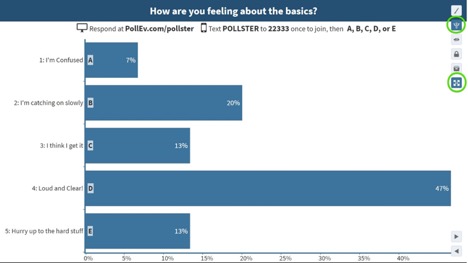
Make sure your Poll has been activated. This can be done from your “My Polls” page or from the activity page. Click the activate icon shown below.

Within a Presentation
To present your activities from within a PowerPoint, Keynote, or Google Slides presentation you will need to have the Poll Everywhere Presentation app installed and be logged in to your account to ensure your questions activate.
Polls are automatically activated when you display a slide containing an embedded poll in presentation mode.
-
What browsers are supported?
Poll Everywhere strongly recommends using the latest version of Chrome, Safari, Firefox, Internet Explorer, and/or Edge. Learn more about specific browser versions.
-
Why isn’t my Activity accepting text message responses?
There may be a few reasons why an activity doesn’t accept text message responses. Firstly, it is important to remember that only Multiple Choice, Word Clouds, and Open Ended activities can accept text message responses. If you have any other activity type or a survey then text responses will not work.
Instructor Training
Archived Workshops
Request Training
Group, one-on-one, or virtual sessions are available to faculty.
Technical Support
Please follow the steps below if you need technical support after reviewing the information, guides, and FAQs above.
-
Contact Poll Everywhere Support
-
Ask Learning Technologies
If these support options do not give a satisfactory resolution, please submit a Learning Technologies Support request and include any ticket numbers provided by Poll Everywhere.
Privacy & Accessibility
 iClicker is a classroom interactive response system that allows students to participate in polls and answer questions during class. Students can respond with a smart phone or any web-enabled device using the Student iClicker app or web browser.
See iClicker compared to Poll Everywhere and Zoom Polls here.
Features:
- Create question content locally in the applications you already use
- Gather data to gauge students' comprehension before moving on
- Poll students and display class results instantly
- Enhance large lecture class with increased student participation and interaction
- Increase students' understanding and retention of topics by keeping them engaged
- Allow anonymity on controversial questions
- Provide feedback to students on their understanding
- Check if students can apply a concept to a different context
- Transform one-way teacher lecture into teacher-student interaction
- Get a large volume of individual answers immediately
- Reduce time on administrative tasks such as grading and taking attendance
How to Access iClicker
Instructors
Instructors may sign up for UAB paid iClicker accounts by following the steps in this guide.
Download iClicker Cloud Software
Software is required to run the polls.
Download iClicker Cloud Software
Students
Download iClicker Student App
Students can download the iClicker mobile app for iPhone or Android or access via a browser on any web-enabled device. A physical clicker is not required.
Guides/Tutorials
Instructors
Getting Started
- Create Instructor Account
- How to Manage iClicker Cloud Course Settings
- How to Help Students Stay on Task with iClicker Focus - Enable iClicker Focus to help reduce distractions for mobile/laptop users.
- iClicker Cloud Polling Question Types
- How to Ask and Grade Target Questions in iClicker Cloud
- How to Share Your iClicker Cloud Course with a Co-Instructor or TA
- How to Create and Manage Assignments in iClicker Cloud
- How to Invite Students to Your iClicker Course Using Quick Join (Join with Code)
During Class
- How to Run a Polling Session in iClicker Cloud
- How to Create and Manage a Quiz Before Class in iClicker Cloud
- How to Run a Quiz Session with iClicker Cloud
- How to View Attendance with the iClicker Cloud Desktop Software
After Class
- How to Grade and View Polling Results at the iClicker Cloud Instructor Website
- How to Grade and View Quizzing Results at the iClicker Cloud Website
- How to View Exit Poll Responses
- How to Use the Gradebook on the iClicker Cloud Instructor Website
- How to View and Edit Student Scores at the iClicker Cloud Instructor Website
- How to View and Manage Attendance Data in iClicker Cloud
- How to Sync iClicker Grades with Canvas
Students
Getting Started
In Class
After Class
- How to Participate in an Exit Poll
- How to View Course History and Session Results
- How to Use Study Tools in iClicker
Additional Information
- How to use a physical iClicker Base with iClicker Cloud (optional)
- How to Complete an Assignment in iClicker
- iClicker System Requirements
- Can I change my iClicker username or delete my account?
- Troubleshooting Your iClicker Account
- Student Privacy with iClicker Cloud Attendance Geolocation - in person classes only
- iClicker Attendance Geolocation Tips - in person classes only
Technical Support
Please follow the steps below if you need technical support after reviewing the information, guides, and FAQs above.
-
Check Status Page
Status Page - Check to see if there any know issues before submitting a ticket.
-
Contact iClicker Support
-
Ask Learning Technologies
If these support options do not give a satisfactory resolution, please submit a Learning Technologies Support request and include any ticket numbers provided by iClicker.
Privacy & Accessibility

UAB faculty, staff, and students have access to OneDrive to store and use files with Microsoft Word, Excel, and PowerPoint in the cloud, desktop, mobile or Canvas as part of UAB’s Microsoft Education subscription. Each user has 5TB of storage in a OneDrive account. More information can be found on UAB’s IT Office website.
In Canvas
Canvas supports an integration with OneDrive through Microsoft Education in Assignments, Collaborations, Modules, Course Navigation, and the Rich Content Editor. Files can be accessed through Microsoft Education links in Canvas selectingOneDrive where cloud files are displayed. This integration allows students and instructors to use, create, share, and collaborate in real time using Office 365 files within Canvas. Users can also view their OneDrive files directly on Canvas.
Features
- Access OneDrive files from inside Canvas course
- Assign an Microsoft 365 (word, ppt, or excel) file as a cloud assignment
- Allow students to collaborate on documents within Canvas groups
- Students can select files from their OneDrive to submit to online assignments
- Embed OneDrive files anywhere the rich content editor is available
- Add OneDrive files to Modules that are updated automatically
- Grade OneDrive submissions via Canvas SpeedGrader
How to Access OneDrive
Both faculty and students are able to access OneDrive in several places across the Canvas platform. Below are the different ways Office 365 is integrated.
Note: It is important for users to log into Microsoft Education with full UAB email address (@uab.edu) and not just their BlazerID.
-
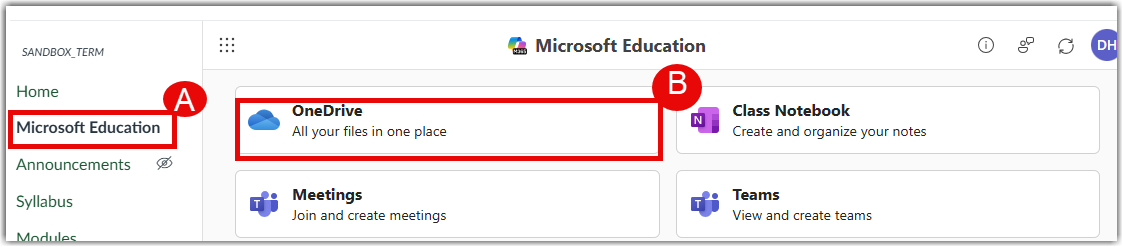
Course Navigation
The Microsoft Education adds a link to Microsoft Education → OneDrive in the Course Navigation menu. This link, most commonly named OneDrive,allows users to access Office 365,allows users to access Office 365 through OneDrive. After logging in to their user accounts, users can view all Office 365 files displayed in their OneDrive account.
-
Cloud Assignments
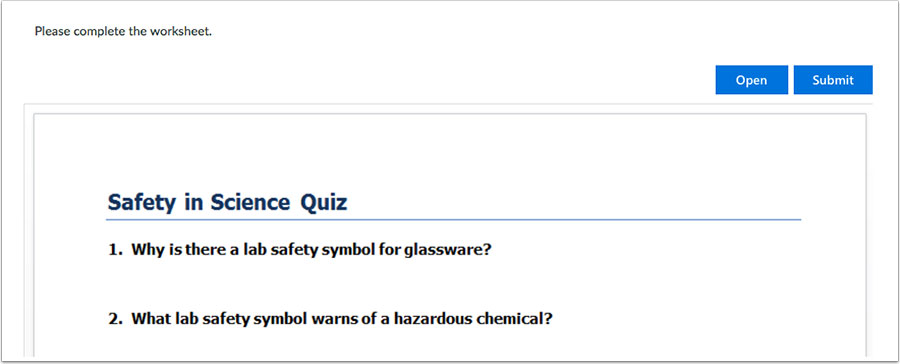
A Microsoft Office 365 assignment in Canvas can be created in two ways. One is as an external tool submission, which uses the Microsoft Education to let students edit and submit files from OneDrive. Instructors can create an online embedded assignment using Microsoft Education LTI as an external tool. When using the Microsoft Education 365 external tool, this assignment type creates a view-only template of the assignment file for students. Supported file types include Word, PowerPoint, and Excel. Please see our guide for more information on creating this assignment type.
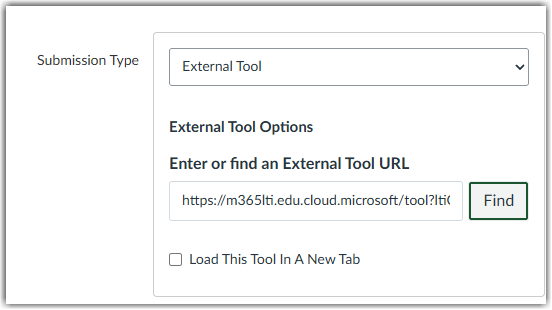
When students open the assignment, Office 365 creates a copy of the file in the student’s OneDrive folder for the course, which can be accessed via Microsoft Education → OneDrive → Office 365 files. Each student works on their own copy of the document according to the assignment instructions. Once students are ready to submit, they return to the Canvas assignment page and submit the assignment. Instructors can then view and grade each student’s document copy using SpeedGrader.
The second way to create an assignment using Microsoft Education tools is directly from the Assignments page in Canvas. From the Assignments page, click the three-dot (More Options) menu located in the upper-right corner of the screen, then select Microsoft Education from the menu. Using this option, instructors can create or attach cloud-based Microsoft files (such as Word, Excel, or PowerPoint) directly to an assignment. Students can open these files within Canvas, work on them online using Microsoft 365, and submit their completed work without needing to download or upload files manually.
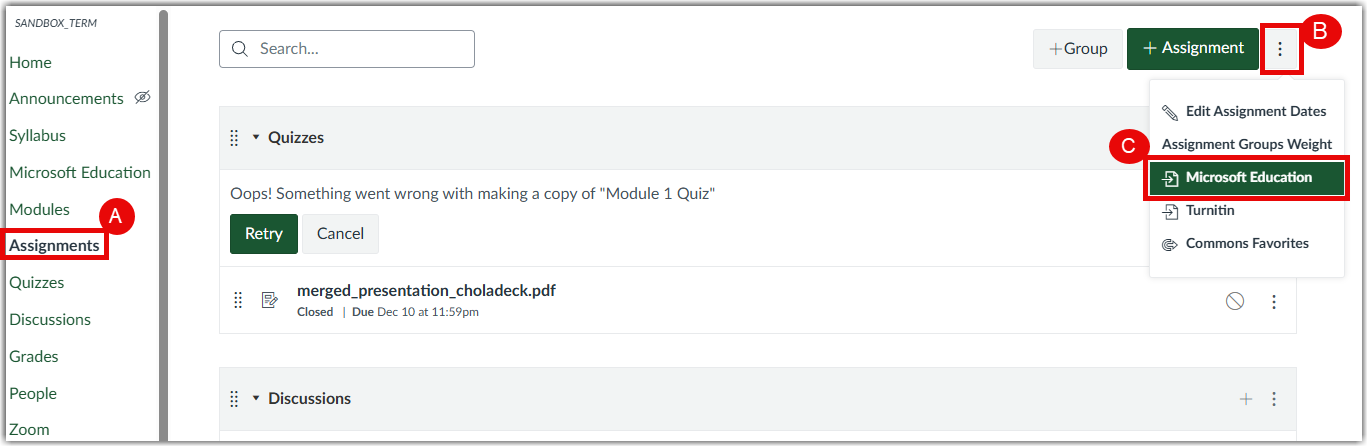
Both access methods provide seamless integration between Canvas and Microsoft Education, making it easy for students to collaborate, save progress automatically in the cloud, and submit assignments directly through Canvas.
-
File Upload Assignments
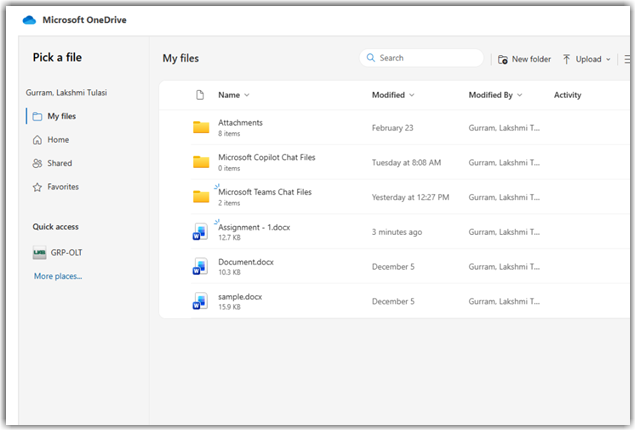
Instructors can also continue to create regular file upload assignments. When file uploads are allowed, students can select files directly from their Microsoft OneDrive using the file picker. Students will see their OneDrive folders and files (such as Word, PowerPoint, or Excel documents) and can choose a file to upload without needing to download it to their device.
-
Collaborations
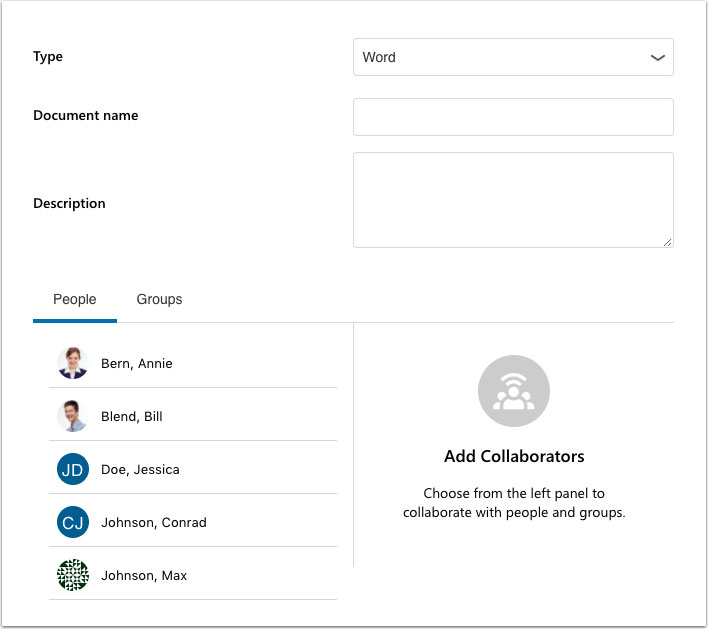
Users can create collaborative Microsoft Word, PowerPoint, or Excel documents. The document creator can add individual users or course groups to participate in the collaboration. Collaborators can be added or removed at any time. Once a user is added, the shared document appears in the user’s Microsoft OneDrive and remains accessible unless sharing permissions are changed or the document is removed.
-
Modules
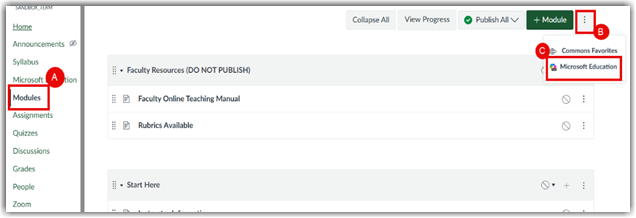
Instructors can also continue to create regular file upload assignments. When file uploads are allowed, students can select files directly from their Microsoft OneDrive using the file picker. Students will see their OneDrive folders and files (such as Word, PowerPoint, or Excel documents) and can choose a file to upload without needing to download it to their device.
-
Rich Content Editor
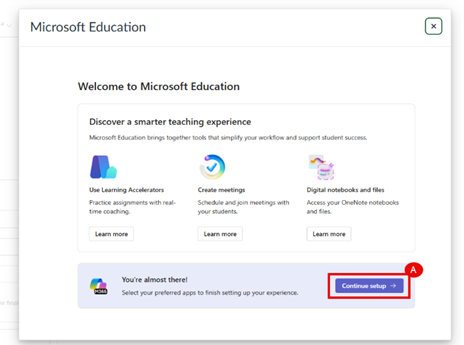
The Office 365 LTI (Microsoft Education) adds a OneDrive icon to the Canvas Rich Content Editor, allowing instructors and students to access files from their OneDrive and insert them as inline links. The icon is available anywhere the Rich Content Editor is used—such as pages, assignments, discussions, and announcements (as permitted)—and supports sharing and viewing cloud-based Microsoft documents directly within Canvas.
Guides/Tutorials
FAQ
-
How do I allow students to submit OneDrive files to assignments?
Any assignment that allows submission via File Uploads automatically allows students to submit files from their OneDrive account.
-
How do I grade Office 365 submissions?
Office 365 files display in SpeedGrader with the Office 365 Viewer. This allows you to grade Office 365 submission in SpeedGrader.
-
Can I upload files to my OneDrive from within my Canvas course?
No, the Canvas integration with OneDrive only allows you to submit or link to the contents of your OneDrive from within your course. To upload files to your OneDrive, go to office.com and sign-in with your UAB email address (@uab.edu) and Strong Password.
-
Are there any limitations to Office 365 Cloud assignments?
Yes, some of the standard Canvas options such as group assignment, peer-review, plagiarism detection, and manual file submissions are not available when using cloud assignments.
Instructor Training
Technical Support
Please follow the steps below if you need technical support after reviewing the information, guides, and FAQs above.
-
Contact Office 365 Support
-
Ask Learning Technologies
If these support options do not give a satisfactory resolution, please submit a Learning Technologies Support request and include any ticket numbers provided by Office 365.
Privacy & Accessibility