1. Executive Summary & Purpose
This document details two primary methodologies for conducting online invigilation using Respondus LockDown Browser within Canvas: Instructor Live Proctoring (via Zoom) and the newly introduced Second Camera Setup. Based on empirical testing, utilizing a second camera offers significantly superior workspace visibility and exam integrity compared to standard webcams alone.
Note: Live proctoring via LockDown Browser suppresses Zoom video controls for students. For effective dual-camera monitoring without allowing full secondary device operating freedom, the dedicated Canvas ”Second Camera” setting provides a secure, streamlined architecture.
Option A: Setting Up Instructor Live Proctoring (Zoom)
Instructor Live Proctoring allows instructors to monitor small groups of students in real-time over Zoom while LockDown Browser enforces computer restriction.
Step-by-Step Instructor Setup in Canvas
- Navigate to your Canvas course and click LockDown Browser in the course navigation menu.
- Locate the target Quiz, click the context arrow next to its title, and select Settings.
- Select Require Respondus LockDown Browser for this exam.
- Check the option Allow instructor live proctoring for this exam.
- Select Zoom as your video conferencing system and enter a unique Start Code.
- Click Save and Close.
Option B: Setting Up the Second Camera Feature
The Second Camera option utilizes a mobile device (phone or tablet) to stream an additional side-view of the student’s physical desk area directly into Respondus Monitor.
Step-by-Step Canvas Configuration
- In the LockDown Browser Dashboard, open Settings for the selected quiz.
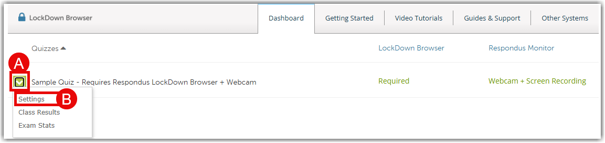
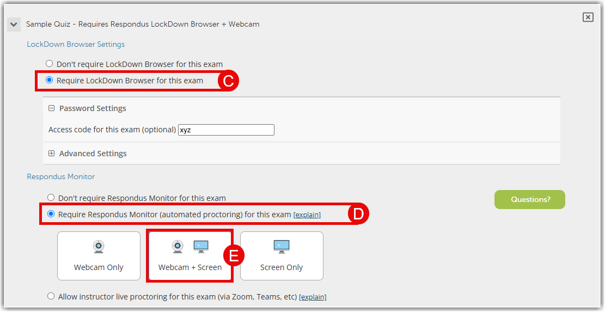
- Select Require Respondus LockDown Browser AND Require Respondus Monitor.
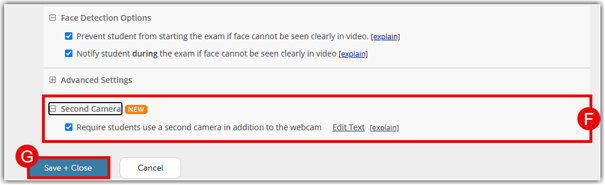
- Under Monitor settings, check Require students to use a second camera in addition to the webcam.
- Customize on-screen student placement instructions and click Save and Close.
Student Connection Workflow
- Student opens the quiz on their computer using LockDown Browser and proceeds through startup checks.
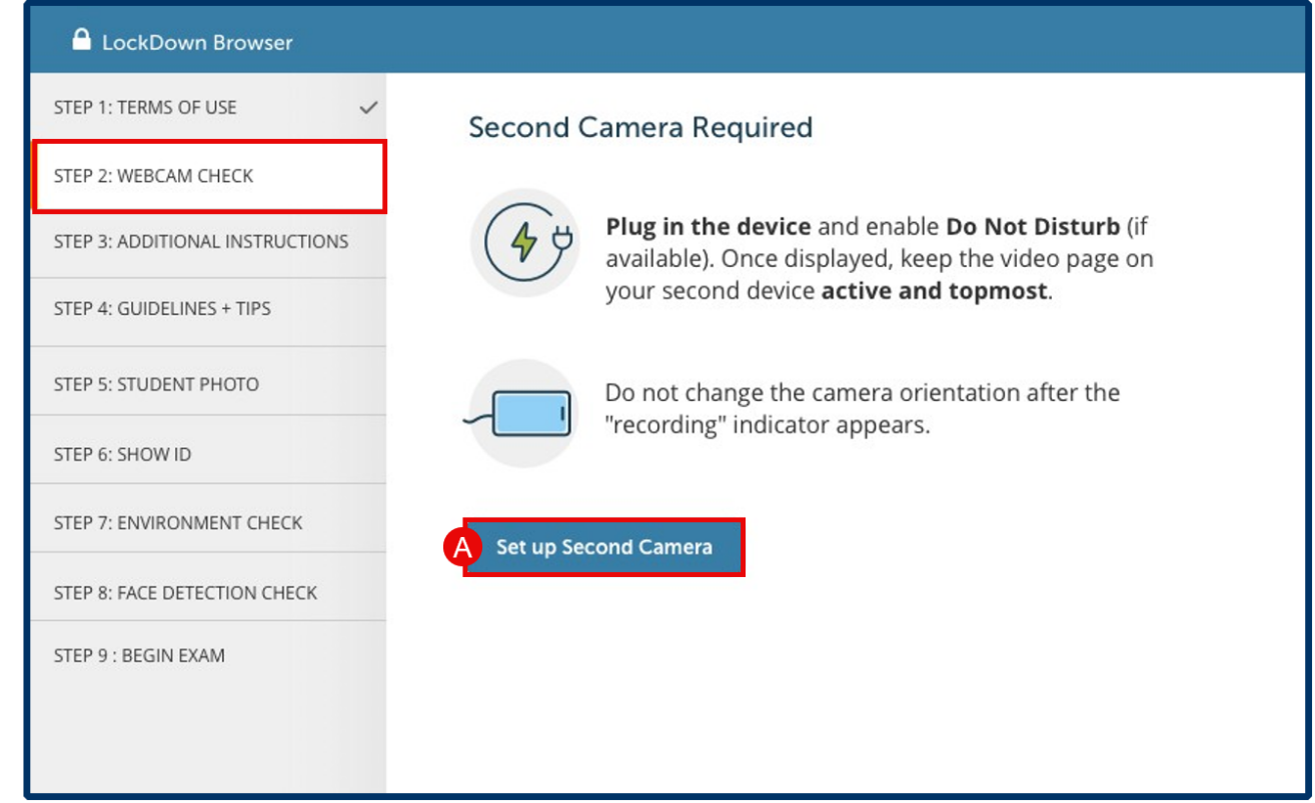
- At the Second Camera step, a unique QR Code appears on the main monitor.
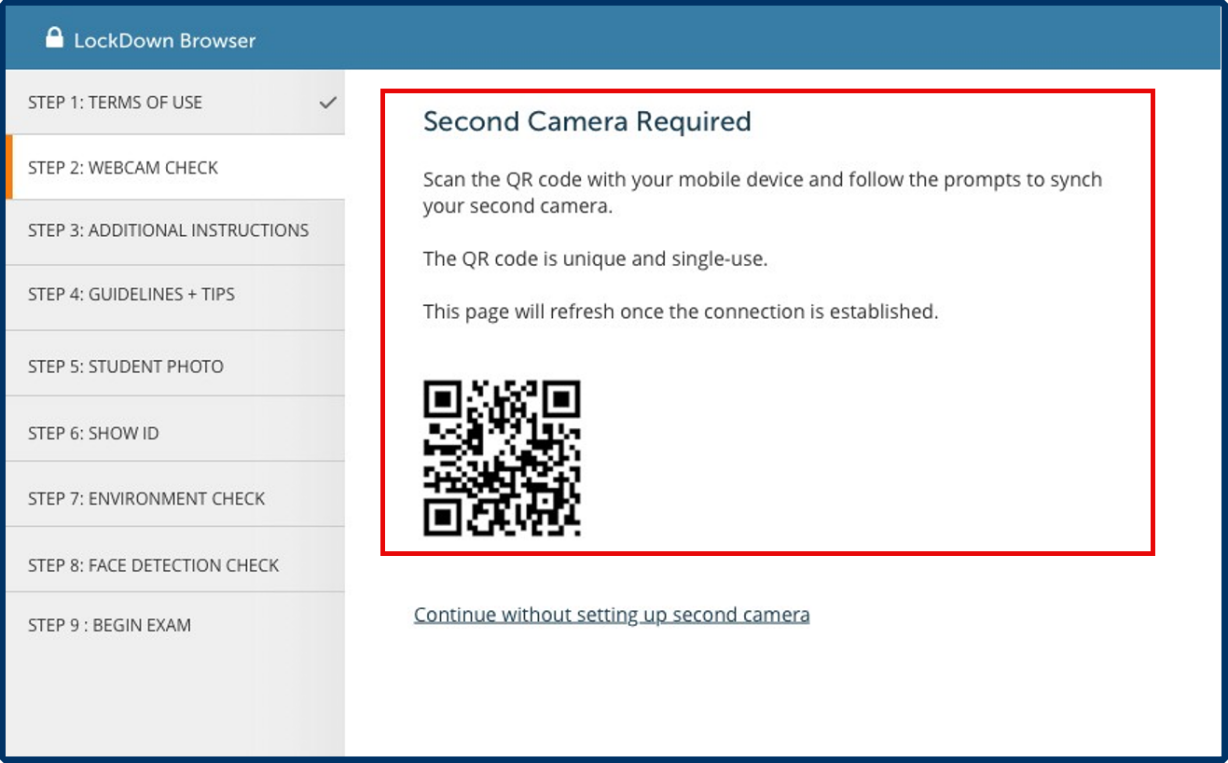
- Student uses their smartphone/tablet to scan the QR code (no app download required).
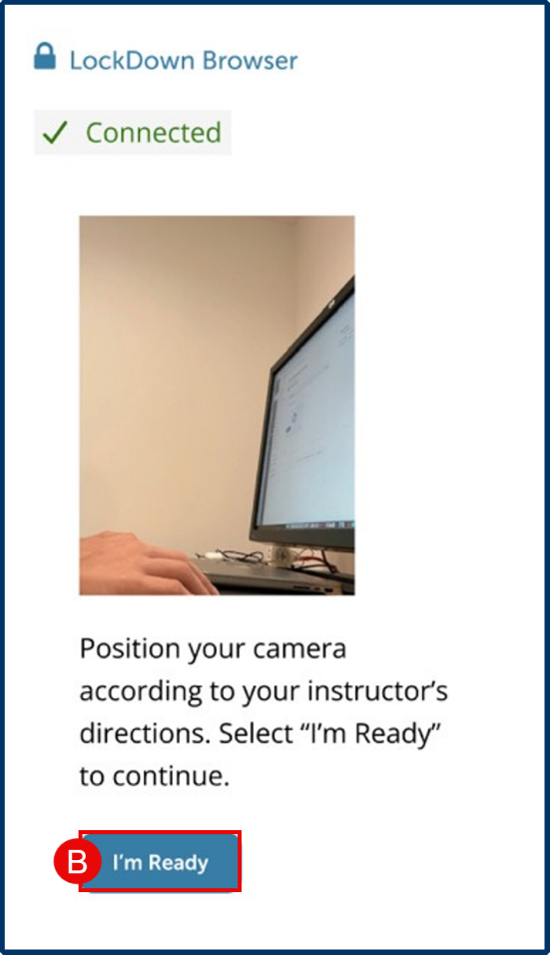
- Student grants camera permissions, positions the phone 3 feet away showing screen, keyboard, and hands, and taps I’m Ready.
2. Expected Functionality & Workflow Comparison
3. Recommendations Based on Test Observations
- Adopt Second Camera over General Second Device Access: The native Canvas Second Camera option locks the mobile stream into a dedicated recording window, preventing students from freely browsing on the second device.
- Mandate Power Connections: Require students to plug both their primary computer and mobile device into power outlets to avoid dropouts mid-exam.
- Conduct Practice Quizzes: Run a zero-point practice test prior to midterms so students test QR code scanning and device propping ahead of time.