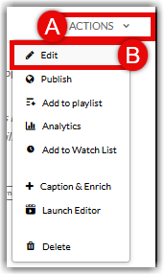
Once your media is uploaded to Kaltura MediaSpace, you can edit content by choosing Edit (B) in the Actions (A) section. On this page, you can adjust media details, clipping settings, add collaborators, and change the thumbnail. The sections below will walk you through all the options and show you how to edit your media.
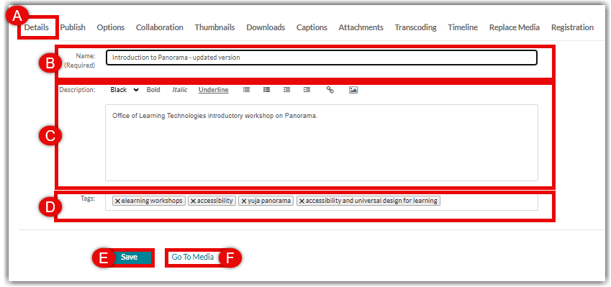
Edit Details:
- Click the Details (A) tab to access and edit the details of media.
- The Name (B) can be edited. This field is required.
- The Description (C) can be edited using the rich text editor to include formatted words, hyperlinks, and pictures.
- Tags (D) can be removed or added to make searching for the media easier.
- Once edits have been made, click Save (E) to save the changes.
- Click Go to Media (F) to go to the media page and see changes made
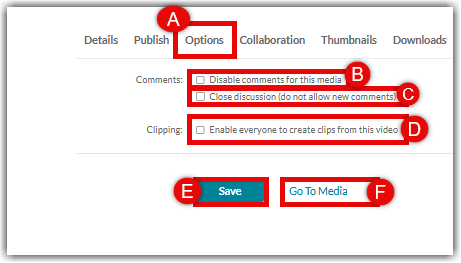
Edit Options:
- Click the Options (A) tab to edit the comment and clipping options of the media.
- Choose to Disable comments (B) to remove the comment window under media in Media Gallery
- Choose to Close discussion (C) to let past comments remain but deny further commenting.
- Choose if users can Create a clip (D) of the media in their own My Media.
- Once options have been chosen, click Save (E) to save the changes.
- Click Go to Media (F) to go the media page and see changes made.
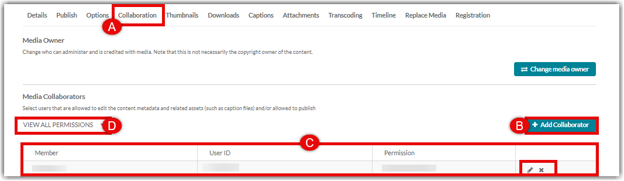
Edit Collaboration:
Users can give other Kaltura MediaSpace users permission to collaborate on media in My Media. Permission levels include co-view, co-publish, and co-editor.
- Click the Collaboration (A) tab to edit or add collaborators to media.
- Click + Add Collaborator (B) to give a user or users permission to your media.
- Current Collaborators (C) and their permissions for that media will be listed including their BlazerID.
- Click the Filter (D) dropdown menu to filter the list by permission level.
Edit collaborator permissions (E) or remove collaborator using the pencil or “X”.
Add a Collaborator:
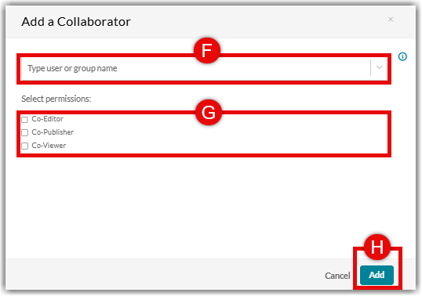
Once you click + Add Collaborator (B) mentioned above, a dialog box will appear. Follow the directions below.
- Click the User (F) textbox and type in either the BlazerID or name of desired user(s) to be added.
- Check the box(es) of desired Permissions (G) for the selected collaborator. Multiple selections can be made.
Co-Editor allows collaborators to edit the original media content. (Be careful)
Co-Publisher allows collaborators to publish your media in their courses but cannot edit it. Co-Viewer allows collaborators to view the video but cannot publish or edit the media.
- Click Add (H) to save the changes made.
Edit Thumbnail :
A Thumbnail is the image that users see before the video is played. The default thumbnail image selected for media is the first frame of the video. This image can be changed by using one of the methods below.
Upload Thumbnail :
Users can upload their own image to be the thumbnail image.
- Click the Thumbnail (A) tab to edit the thumbnail of the media.
Click Upload Thumbnail (B), select the desired image file, and choose upload. The image will load and become the default thumbnail for the media.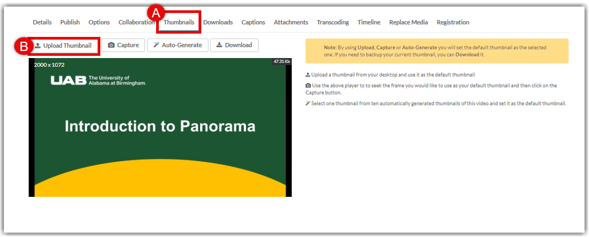
Capture Thumbnail:
Users can choose a particular second of the video and capture it as a still image to be used at the thumbnail.
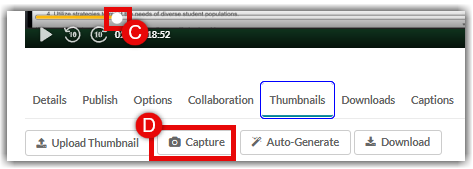
- Click and drag the white Circle (C) on the playback timeline to the desired time in the video.
- Click Capture (D). The image displayed in the player at that moment will become the thumbnail image.
Auto Generate Thumbnail:
Users can choose a thumbnail image from a selection that is auto-generated by Kaltura.
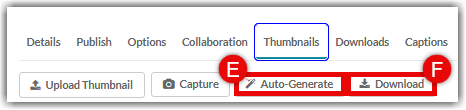
- Click Auto-Generate (E). A dialog box will appear with several images that are created from your media. Choose the desired image and it will become the thumbnail image for the media.
- Download the current thumbnail image used in Kaltura by clicking Download (F).
The Edit Media page provides a variety of tools to help you maintain and enhance your media content. By using these features, you can keep media information up to date, manage access and collaboration, and customize how your media is displayed to viewers. Once you have finished making changes, click Save to apply your updates.